Edit item details: units, notes, tags, favorites
Add a unit, store, notes, tags, and more to an item, and mark the things you buy all the time as favorites.
Takes about 2 minutes
An item can be just a name and a number. A few more details make it more useful: "4 jars from Aldi, aisle 4" tells you exactly what to buy and where.
Steps
- Open Edit item. In an inventory, tap the ⋯ next to the item, then Edit item. The top has Item name, Quantity, Location, Notes, Store / source, and Aisle.
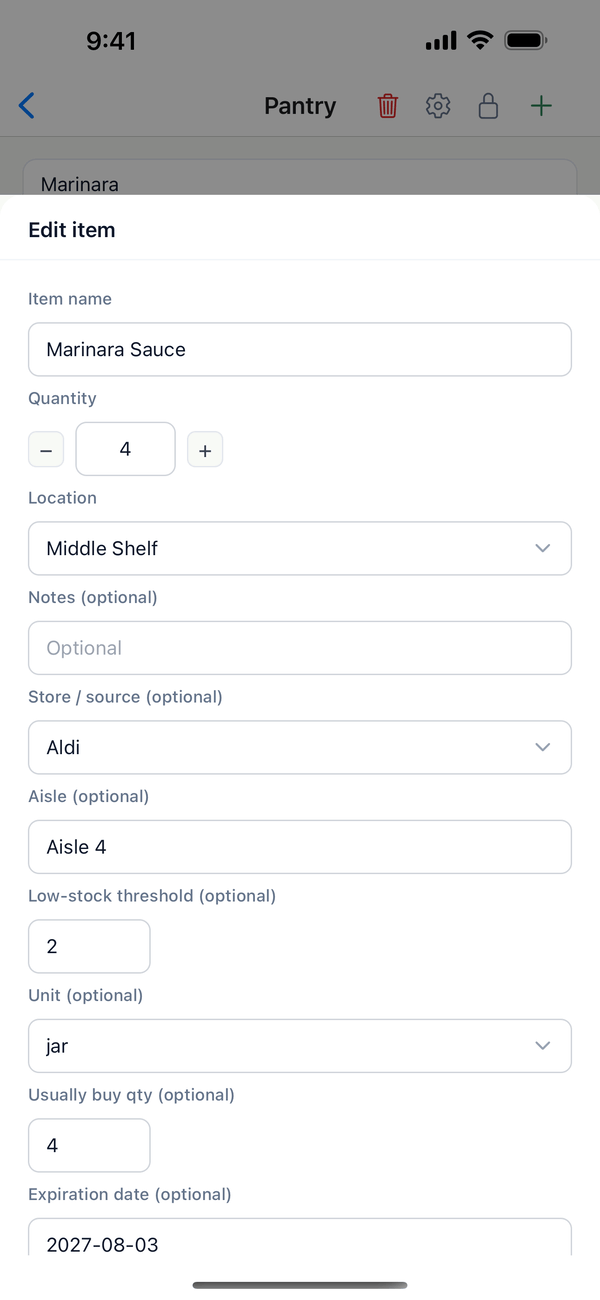
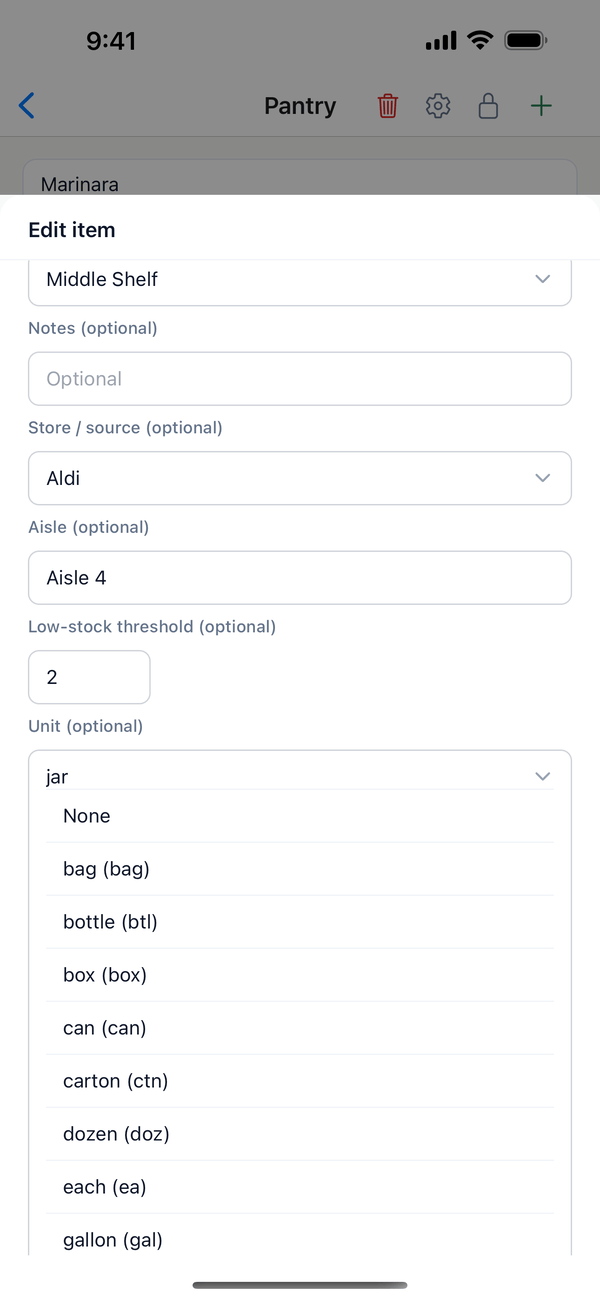
- Pick a unit. Tap the box under Unit (optional) and choose one, like jar, bag, or box. The unit shows next to the quantity in the list ("4 jar").
- Add tags and mark a favorite. Further down are Usually buy qty, Expiration date, and Tags (optional, comma-separated). Tap Mark as favorite for things you buy all the time; it turns into a yellow star that says Marked as favorite.
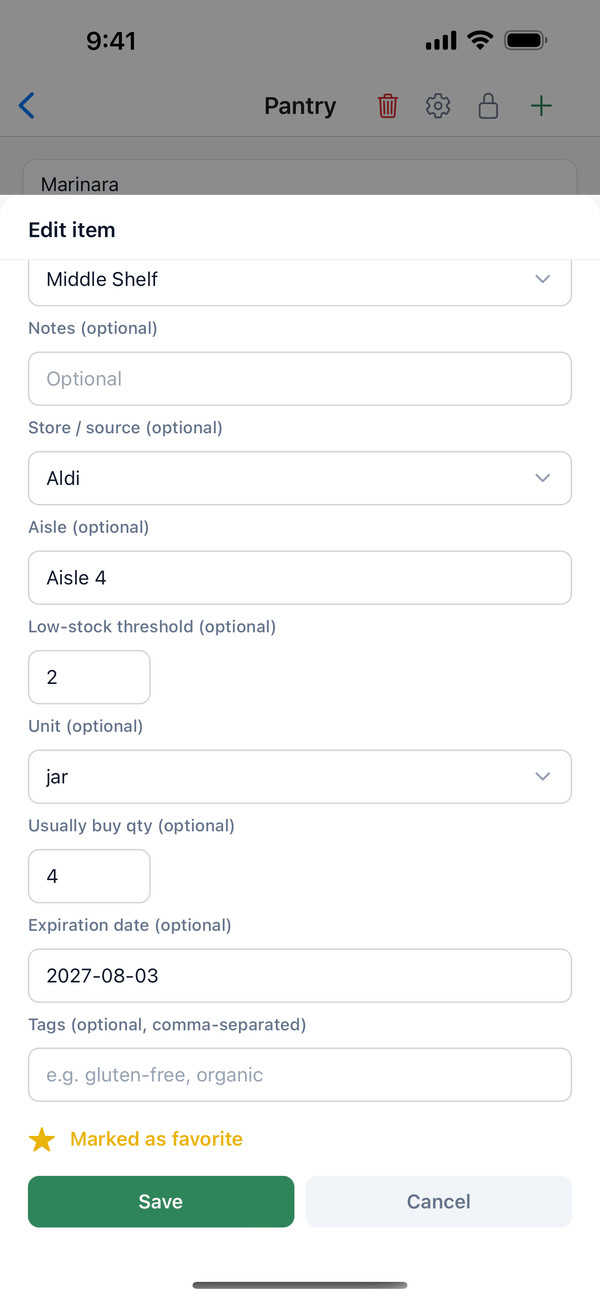
- Tap Save. Tags show as small labels under the item's name in the list.
Tips
- Store / source groups the item under that store on the shopping list.
- Usually buy qty is how many you normally buy. When you tap Bought on the shopping list, that's the amount added back.
- Grocery or General? Store, aisle, low-stock threshold, usually buy qty, and expiration date are only in Grocery / Pantry inventories.
- Your own fields (like Author for books) show up here too. See the custom fields guide.
On the web
Open the inventory at domesio.com. Favorites show a star next to the item's name.
← Back to all guides
Still stuck? Send us feedback