Track expiration dates
Add an expiration date to an item, see what's expiring soon in your inventory, and browse it by month in the calendar.
Takes about 1 minute
The yogurt in the back of the fridge always wins. Expiration dates show you what to use first, so less food goes in the trash.
Steps
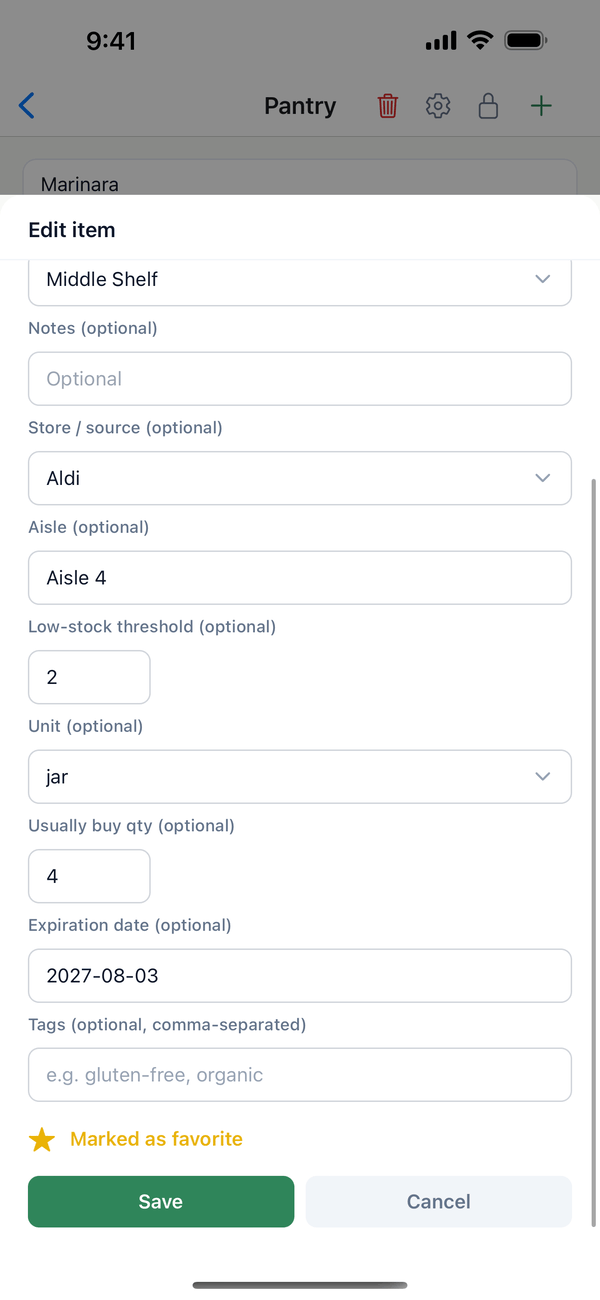
- Add the date. In an inventory, tap the ⋯ next to an item, then Edit item. Type the date in Expiration date (optional) as year-month-day, like 2026-11-16, and tap Save.
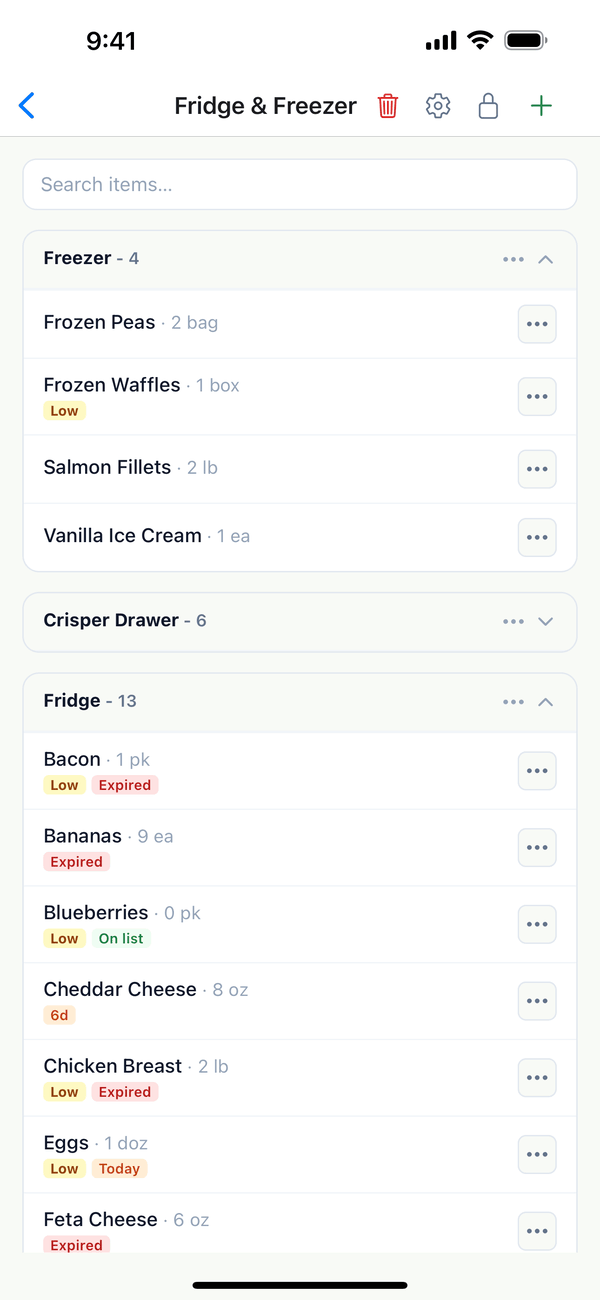
- See it in the list. Items show Expired, Today, or the number of days left (like 6d) when the date is within a month.
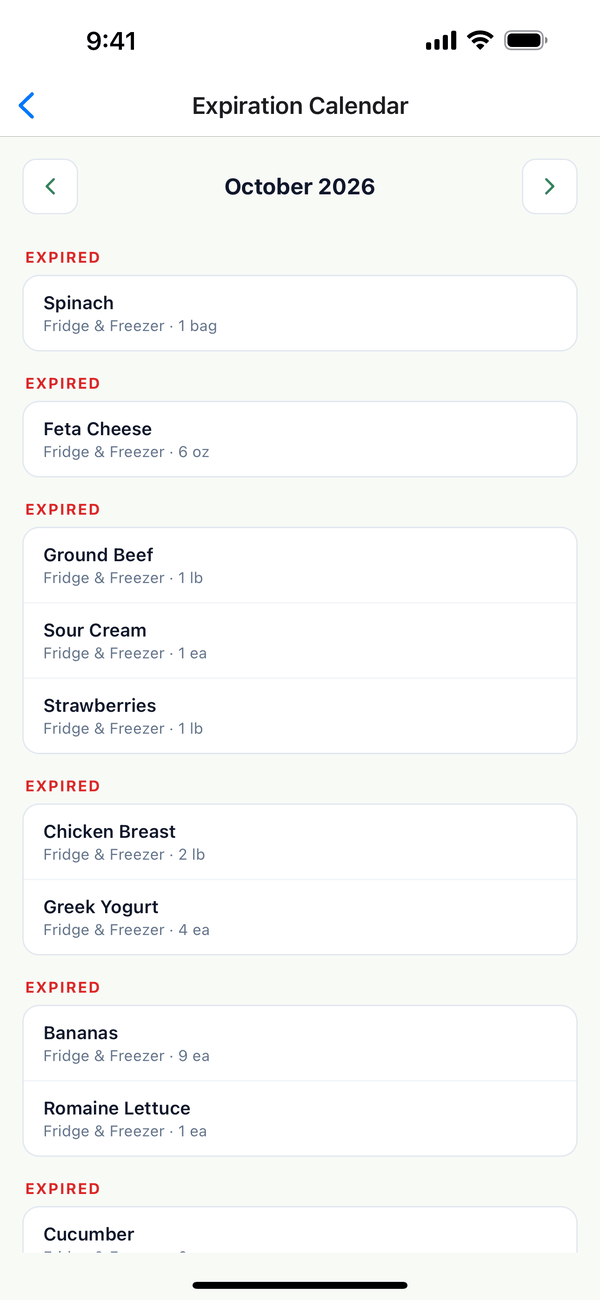
- Open the Expiration Calendar. Tap the Account tab, then Expiration Calendar. Items are listed by date for the month, and anything past its date is under Expired in red.
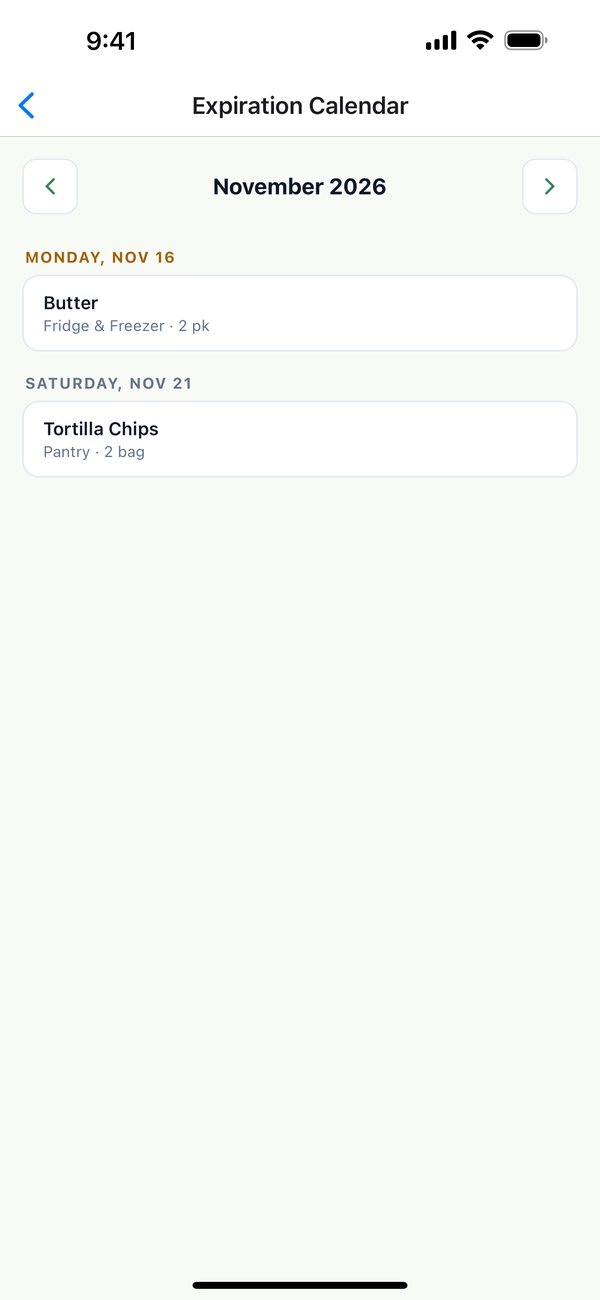
- Look ahead. Tap the arrows next to the month to see what's coming up.
Tips
- Days-left colors: orange for a week or less, yellow for up to a month.
- Used it up or tossed it? Clear the expiration date or delete the item, and it leaves the calendar. Items at a quantity of 0 still show until you do.
- Grocery inventories only. General inventories don't have an expiration date.
On the web
Expiration dates are on each item at domesio.com too. The calendar is in the mobile app.
← Back to all guides
Still stuck? Send us feedback