See what's running low
Set a low-stock amount on the items you never want to run out of, and see them all in one place.
Takes about 1 minute
Nobody notices the last roll of paper towels until it's gone. A low-stock threshold tells Domesio when an item counts as low, so you see it before you run out.
Steps
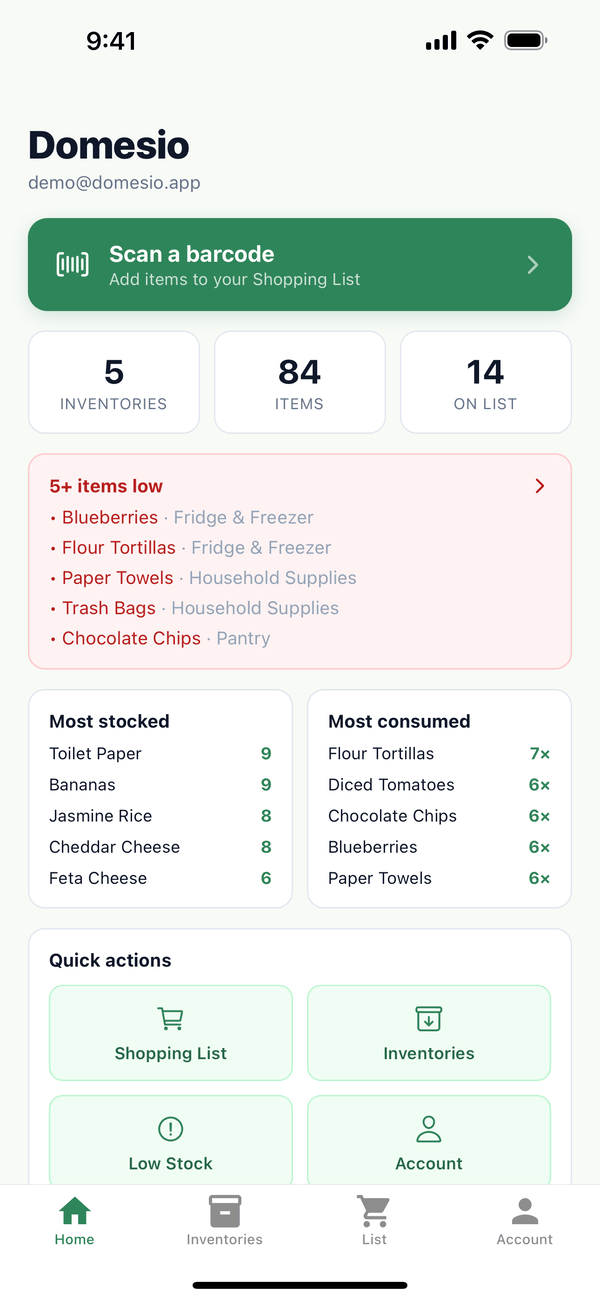
- Check Home. The red card on the Home tab lists items that are low. Tap it to see them all.
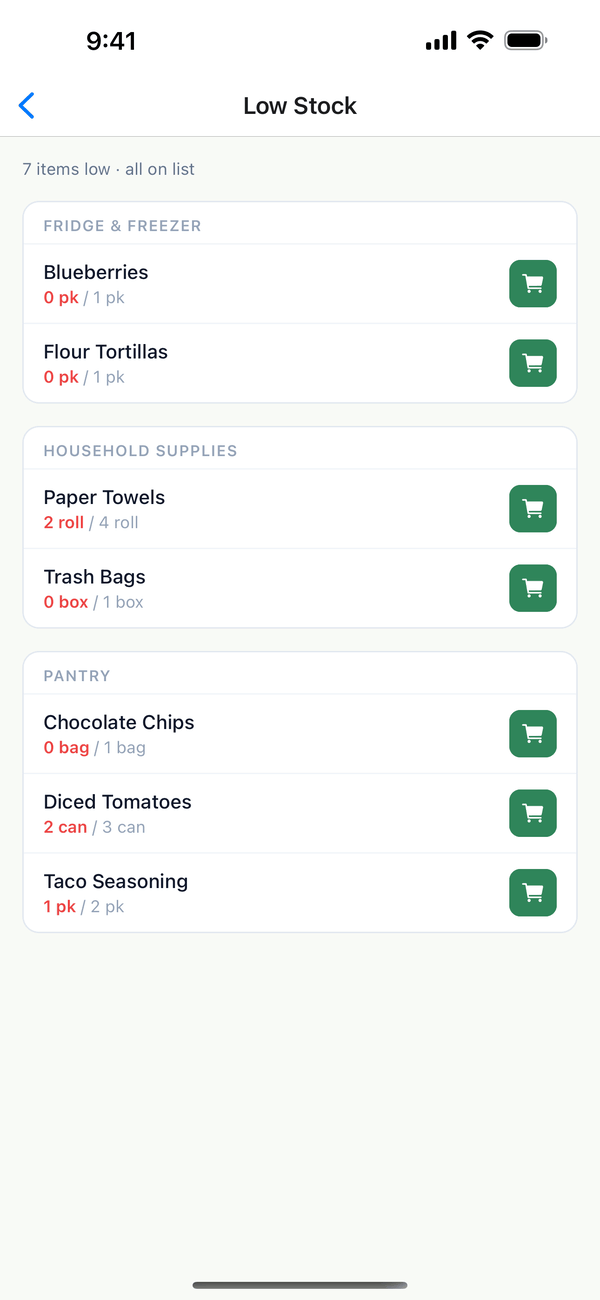
- Open Low Stock. Items are grouped by inventory, each with how many you have and its low-stock amount. The cart button adds an item to the shopping list (green means it's already on the list), and Add all adds every low item that isn't on the list yet.
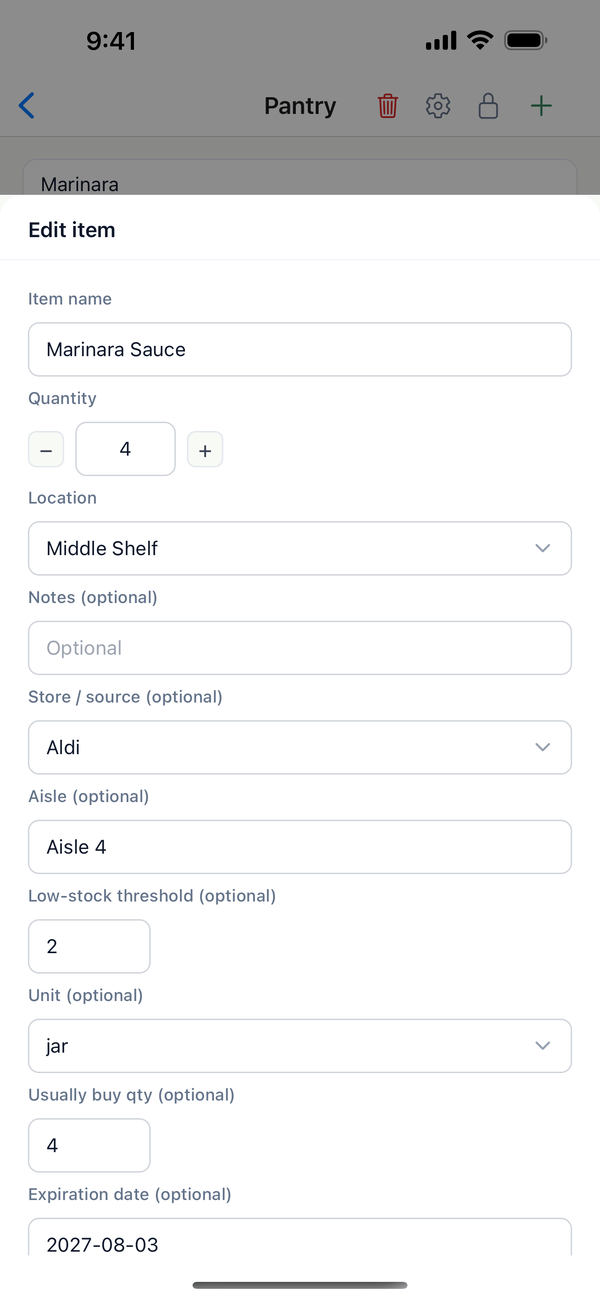
- Set the low-stock amount. In an inventory, tap the ⋯ next to an item, then Edit item. Type a number in Low-stock threshold (optional) and tap Save. The item counts as low when its quantity is at or below that number.
Tips
- Low items get a Low tag next to their name in the inventory.
- Start with the essentials. Coffee, toilet paper, and dish soap are good first picks.
- You can also open Low Stock from Quick actions on Home or from the Account tab.
- Grocery inventories only. General inventories don't have a low-stock threshold.
On the web
Low Stock is in the menu at domesio.com, and you can add items to the shopping list from there too.
← Back to all guides
Still stuck? Send us feedback