Scan a barcode to add an item
Point your phone at a product's barcode and add it to your shopping list or an inventory without typing.
Takes about 1 minute
Typing "organic low-sodium chicken broth" on a phone is no fun. Scan the barcode and Domesio looks up the name for you.
Steps
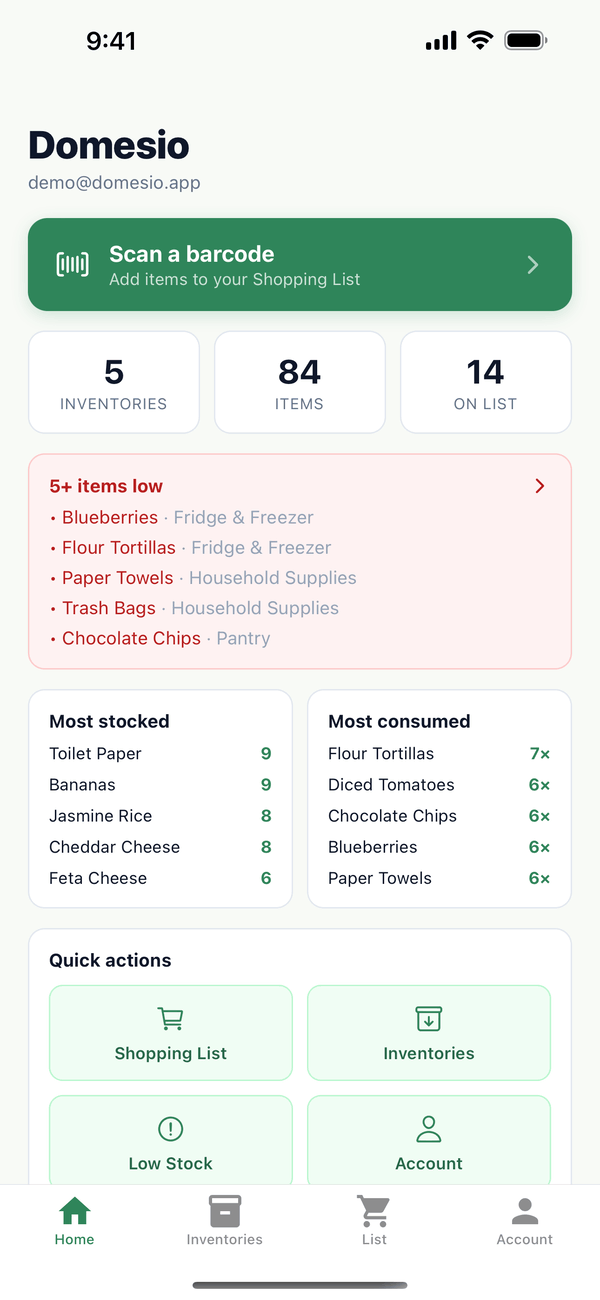
- Tap Scan a barcode. It's the green button at the top of the Home tab.
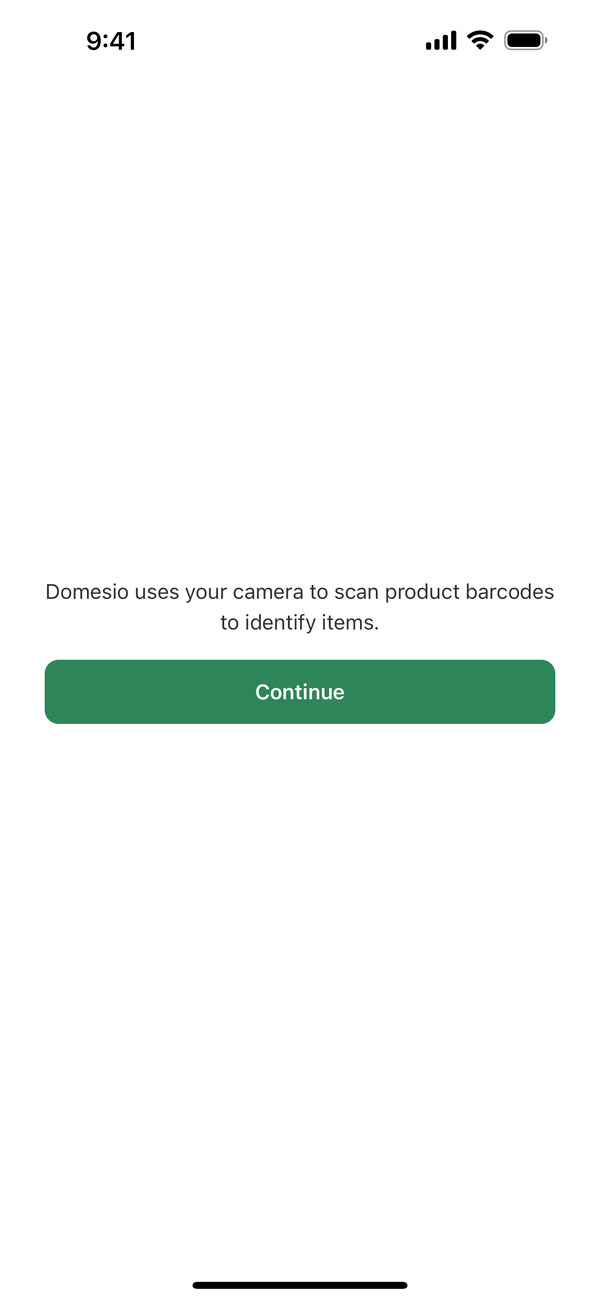
- Allow the camera the first time. Domesio explains why it needs the camera. Tap Continue, then allow camera access.
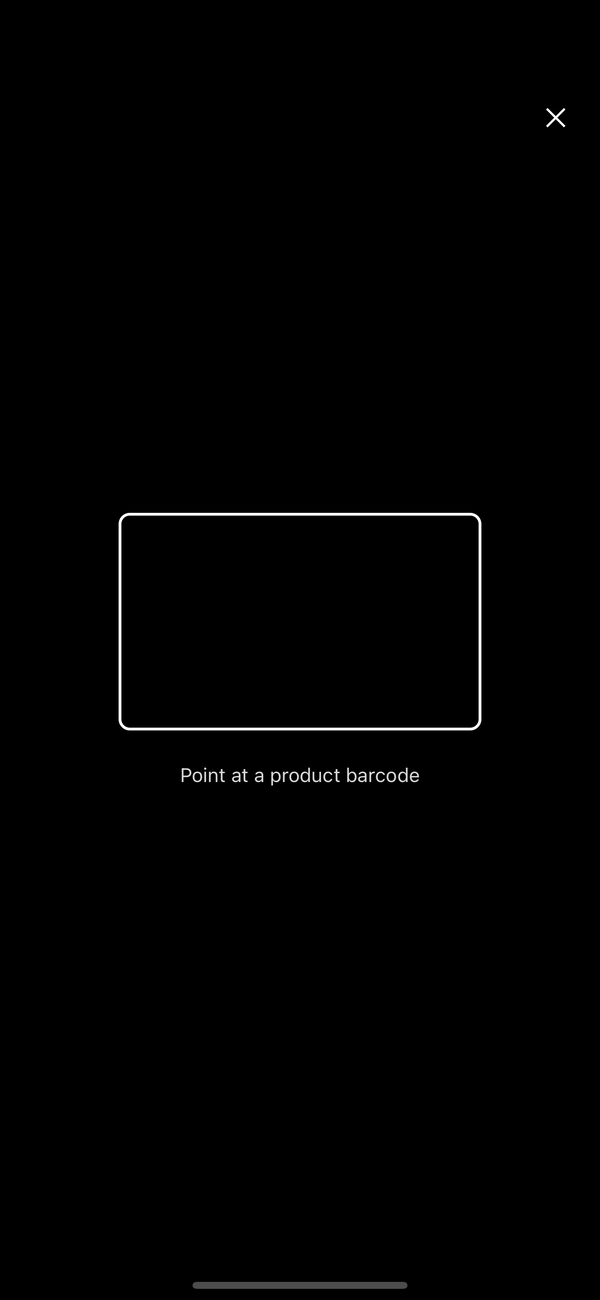
- Point at the barcode. Hold the barcode inside the frame. Domesio scans it on its own and shows "Looking up product…".
- Choose where it goes. If Domesio finds the product, you see Product found with its name. Tap Add to Shopping List, or Add to Inventory to pick an inventory, which opens its Add item sheet with the name filled in. Wrong product? Tap Not this item? Scan again.
- Not found? You see Product not found. Type the name under Enter item name manually and tap Continue.
- Save it. For the shopping list, check the name, add a quantity or store if you like, and tap Add to Shopping List. You see Added!. Tap Scan another or Done.
Tips
- Good light helps. Hold the phone steady, about a hand's width from the barcode.
- Not every product is in the lookup, which is why you can always type the name.
- Changed your mind about the camera? Turn camera access back on for Domesio in your phone's Settings.
← Back to all guides
Still stuck? Send us feedback