Add your own fields and save a template
Track details that matter to you, like Vintage for wine or Author for books, and reuse them in new inventories.
Takes about 2 minutes
Every inventory has the basics, like name and quantity. Custom fields add your own, so a wine inventory can track Varietal and Vintage and a book inventory can track Author.
Steps
- Open the inventory. Fields you add show under each item's name in the list.
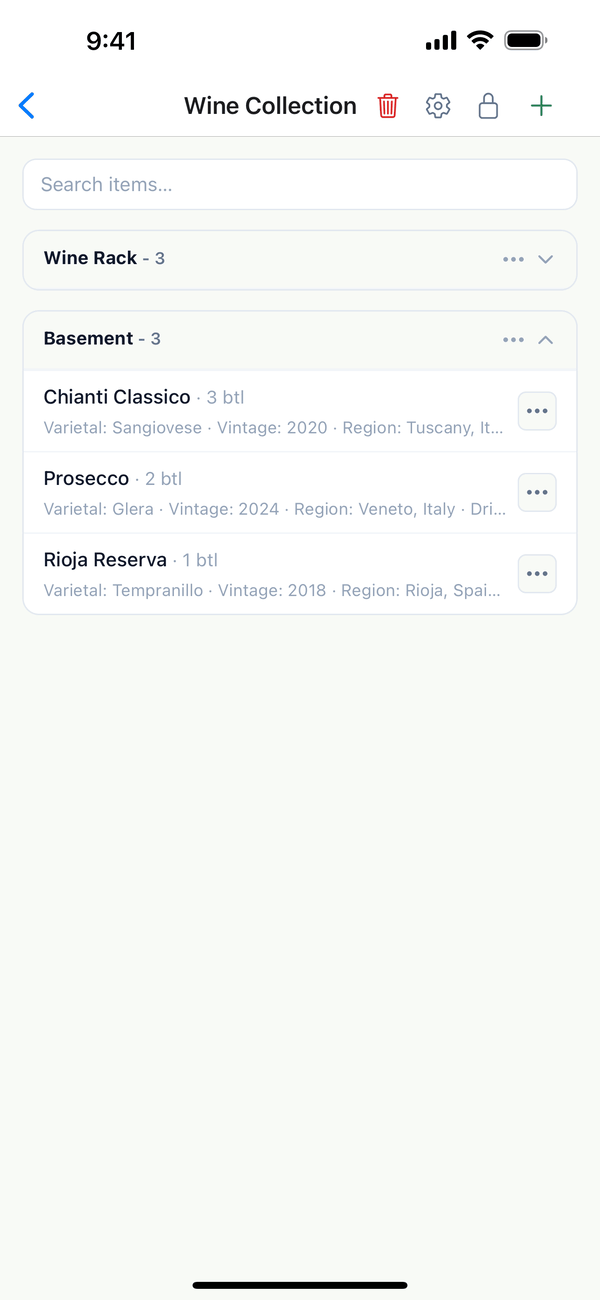
- Open Custom fields. Tap the gear button at the top of the inventory. You see the fields it already has, each with a pencil to rename it and a trash can to delete it.
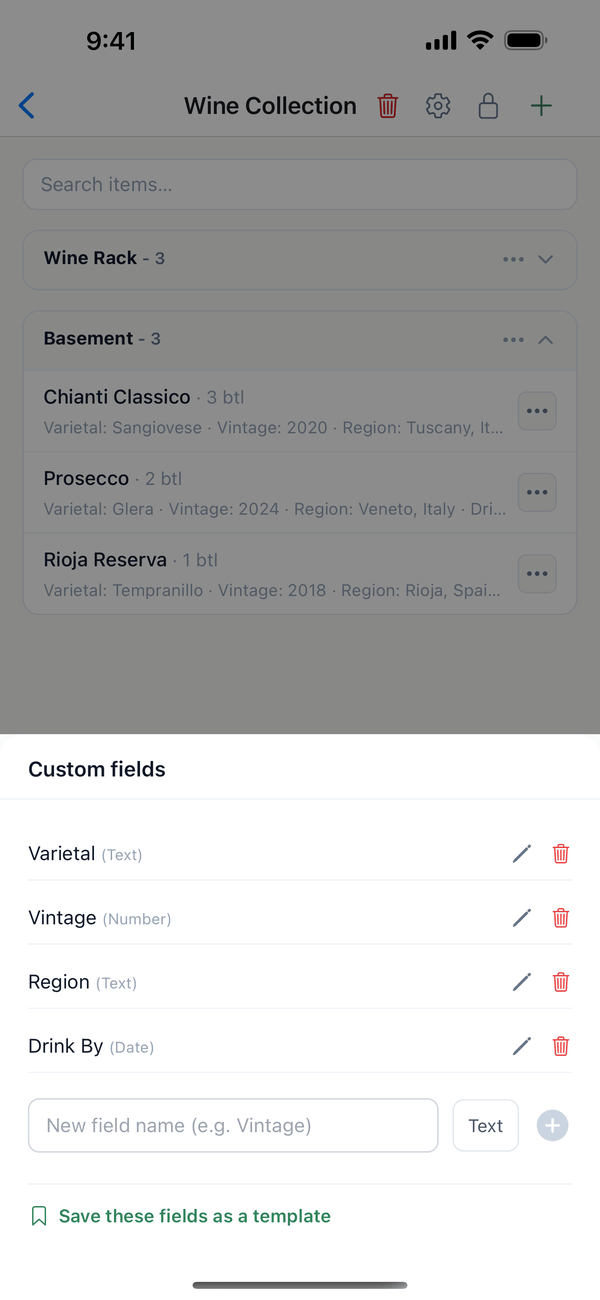
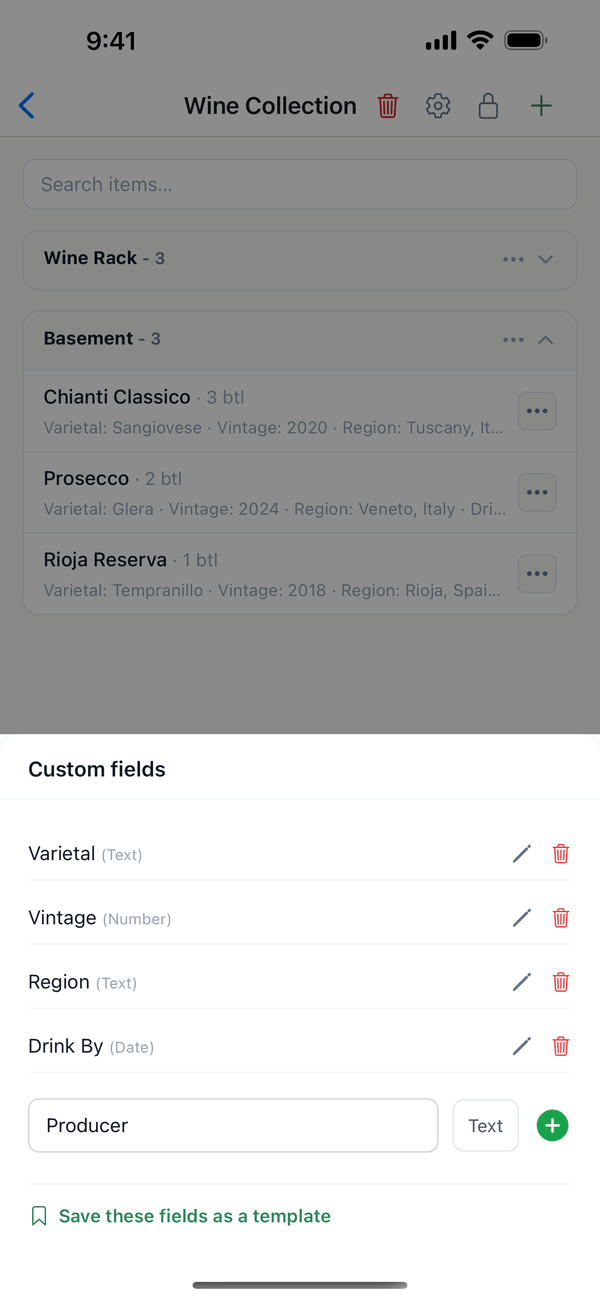
- Add a field. Type a name in New field name (e.g. Vintage). Tap the type button next to it to switch between Text, Number, and Date, then tap the green +.
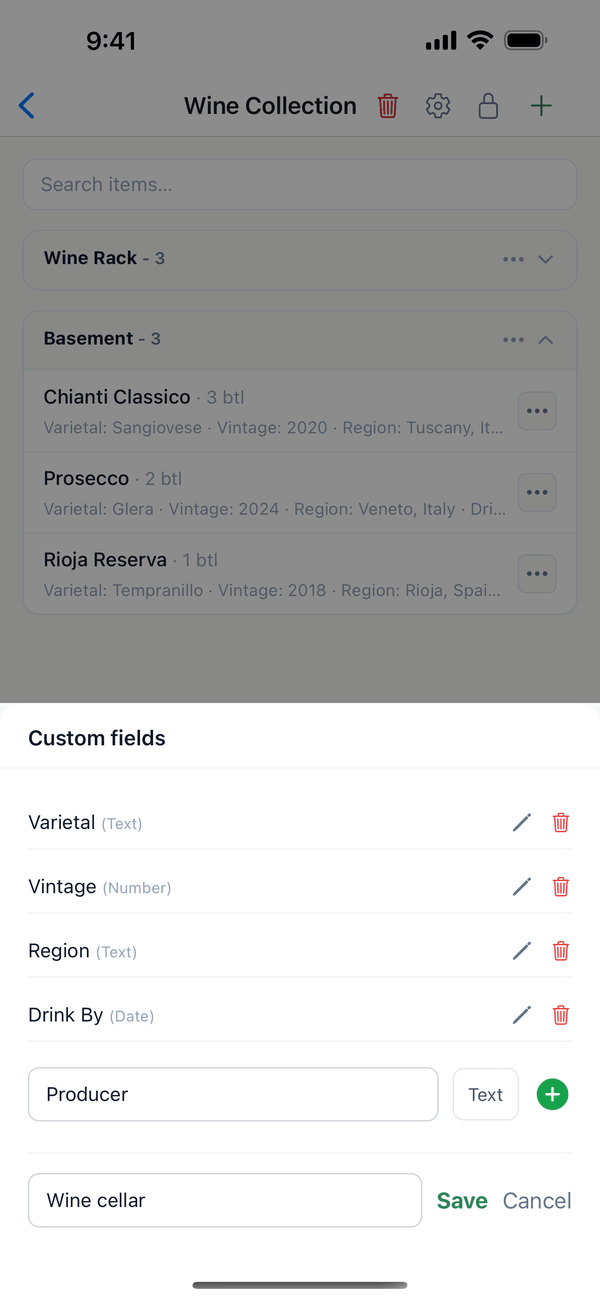
- Save the fields as a template. Tap Save these fields as a template, type a name, and tap Save.
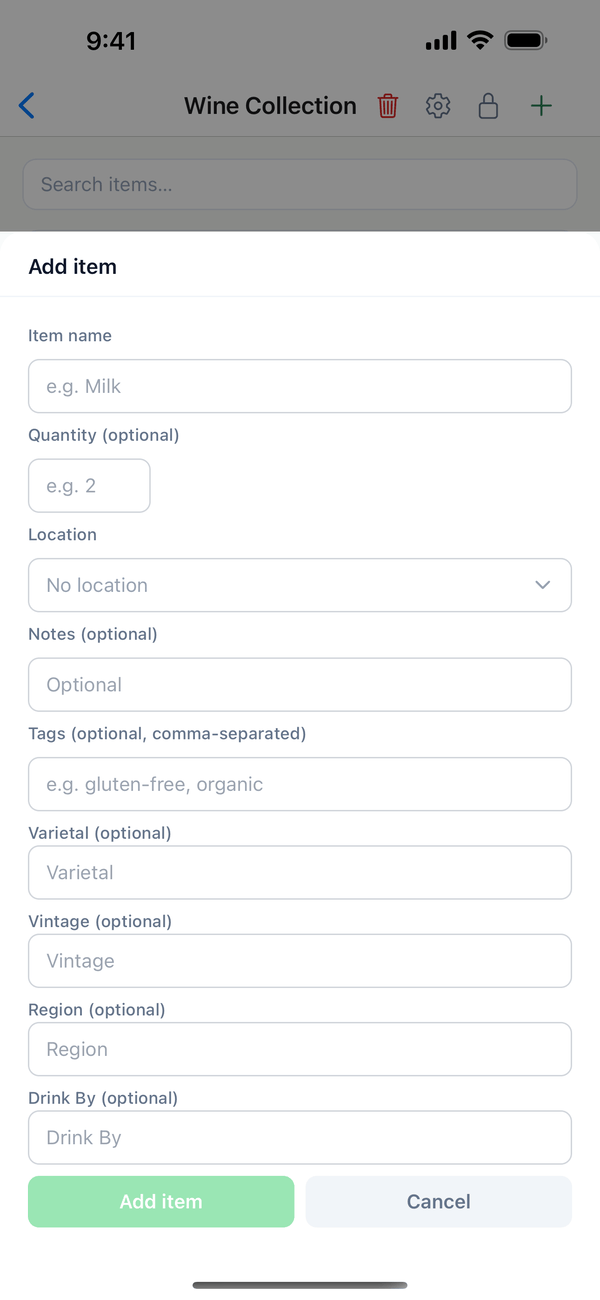
- Fill them in. Your fields appear in the Add item and Edit item sheets for that inventory.
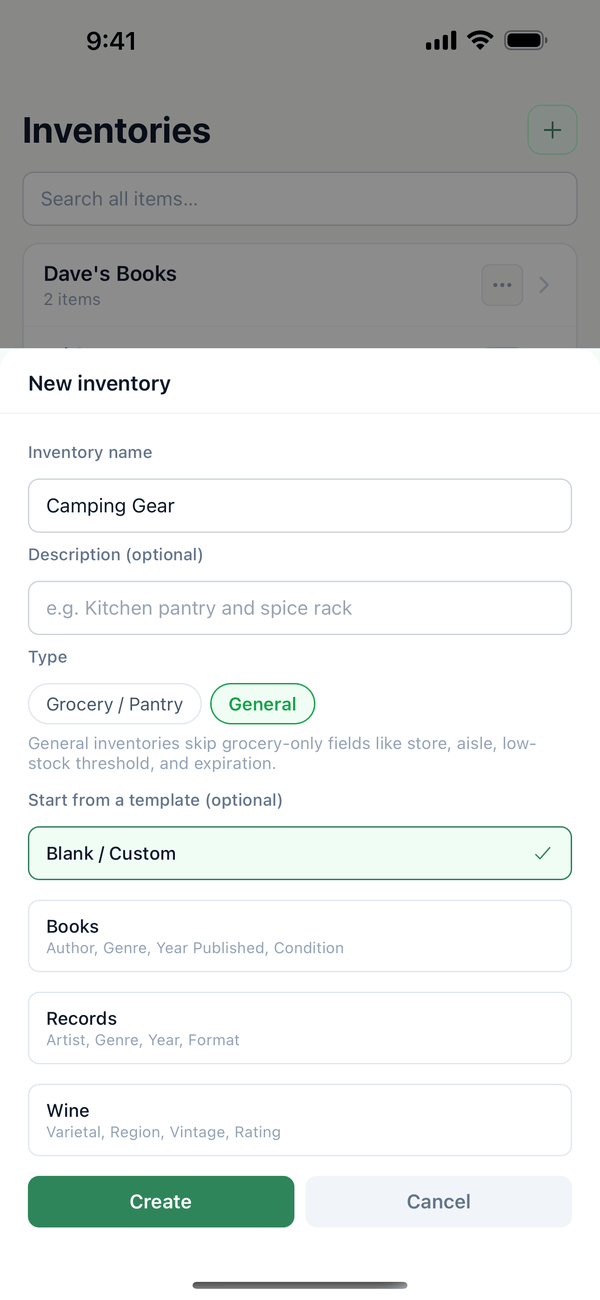
- Reuse the template. When you make a new General inventory, your template is under Start from a template (optional), marked "(yours)".
Tips
- Deleting a field removes it from the inventory. Domesio asks first.
- Templates you saved have a trash can in the template list, so you can remove the ones you don't need.
- Who can do this? Owners and admins manage fields and templates.
On the web
Open the inventory at domesio.com and use its Custom fields section, including Save as template.
← Back to all guides
Still stuck? Send us feedback