Use the shopping list
Add what you need, check it off in the store, and tap Bought to put it back in your inventory.
Takes about 2 minutes
One list for the whole household, grouped by store, so nobody buys a third jar of mustard. Here's how to fill it, shop from it, and restock your inventory when you get home.
Steps
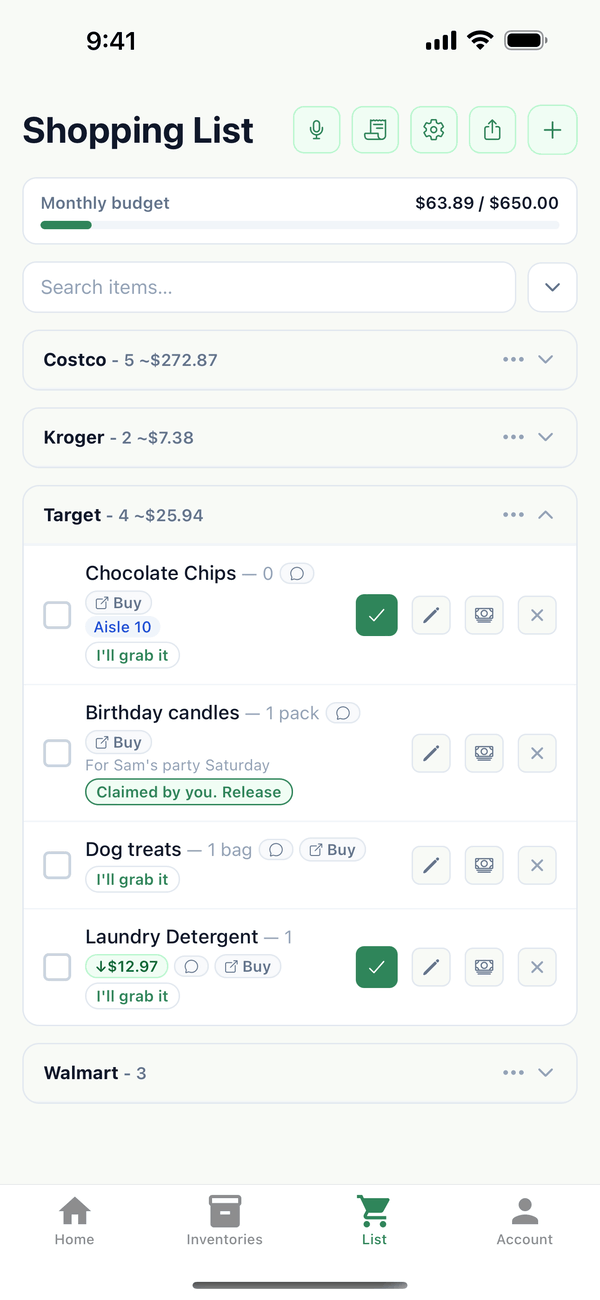
- Open the List tab. Tap List at the bottom. Items are grouped by store, and each store shows how many items it has and an estimated total.
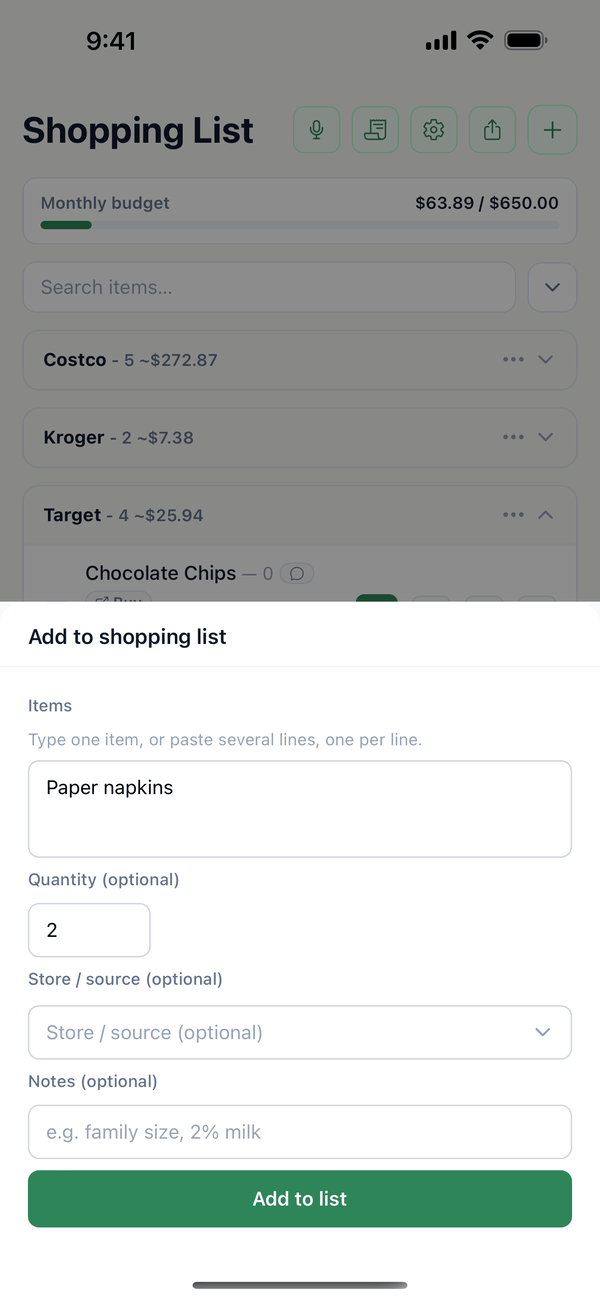
- Add items. Tap the green + at the top right. Type one item, or paste several, one per line. Quantity, Store / source, and Notes are optional. Tap Add to list.
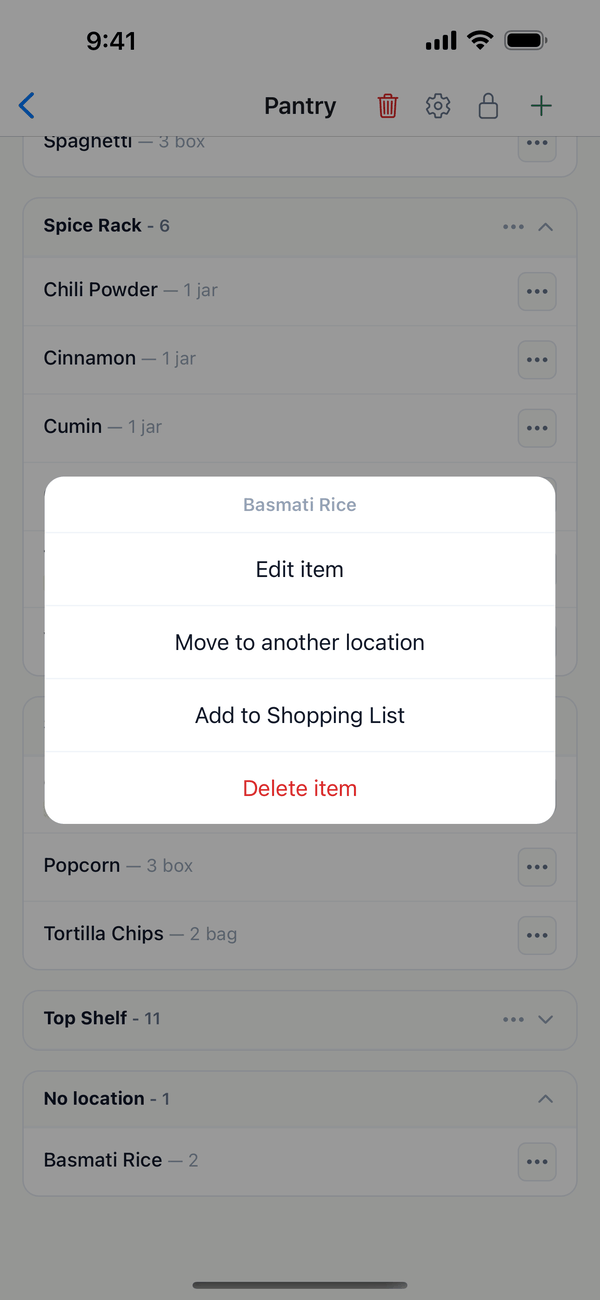
- Or add from an inventory. In any inventory, tap the ⋯ next to an item and choose Add to Shopping List.
- Check things off as you shop. Tap the box next to an item. Checked items move to the bottom of their store and show as checked for everyone in your household.
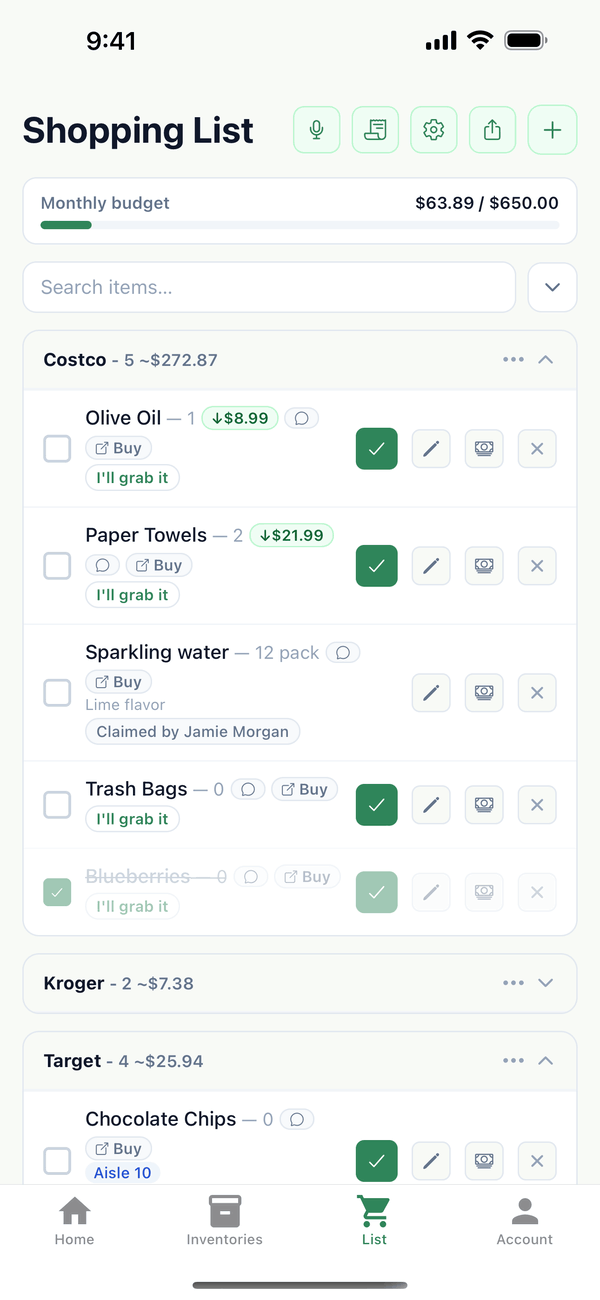
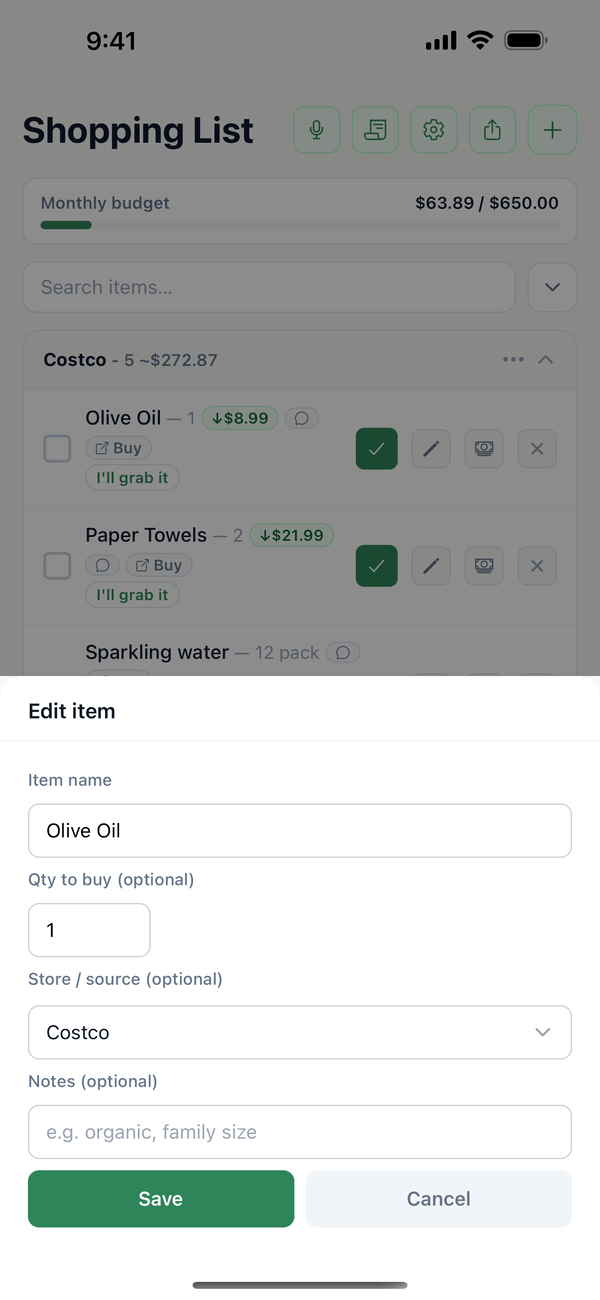
- Tap Bought to restock. Items that came from an inventory have a green check button. Tap it when you buy the item: it leaves the list and the amount you bought is added back to the inventory. The pencil button next to it opens Edit item, where Qty to buy sets how many you buy.
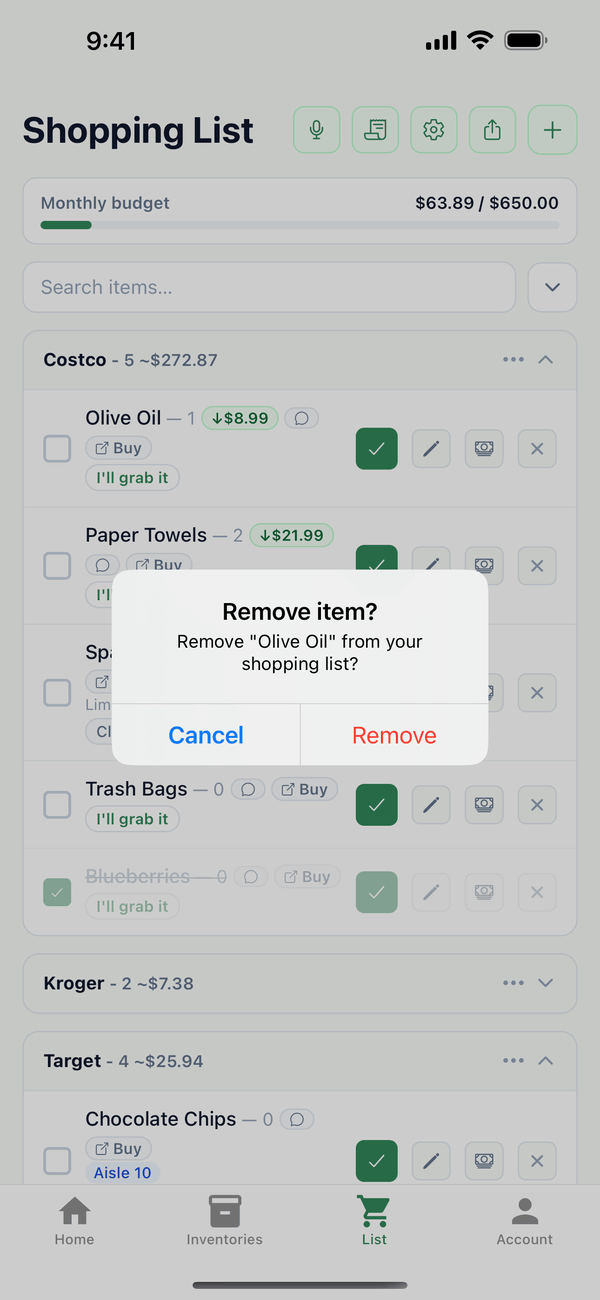
- Remove without buying. Tap the X on the right of an item, then Remove. Cancel keeps it on the list.
Tips
- How much does Bought add? The item's Qty to buy if you set one, otherwise enough to bring it back up to its low-stock threshold, otherwise 1.
- Store menu. Tap the ⋯ on a store's heading to Rename store, + Add item to that store, move the store up or down, or Remove all items.
- Share it. The share button at the top sends the list Share as text or Share as PDF.
- Split the trip. In a shared household, tap I'll grab it on an item so others know you've got it.
- Who can do this? Owners, admins, and editors can change the list. Viewers can see it.
On Android
You can also add the shopping list as a widget on your home screen.
On the web
Add to list has three ways to add: Manually, From an inventory, and From Low Stock.
← Back to all guides
Still stuck? Send us feedback