Invite people to your household
Share your inventories and shopping list with the people you live with, and pick what each person can do.
Takes about 2 minutes
Domesio works best when everyone in the house uses the same lists. Invite them once, and they see the same inventories and shopping list you do.
Steps
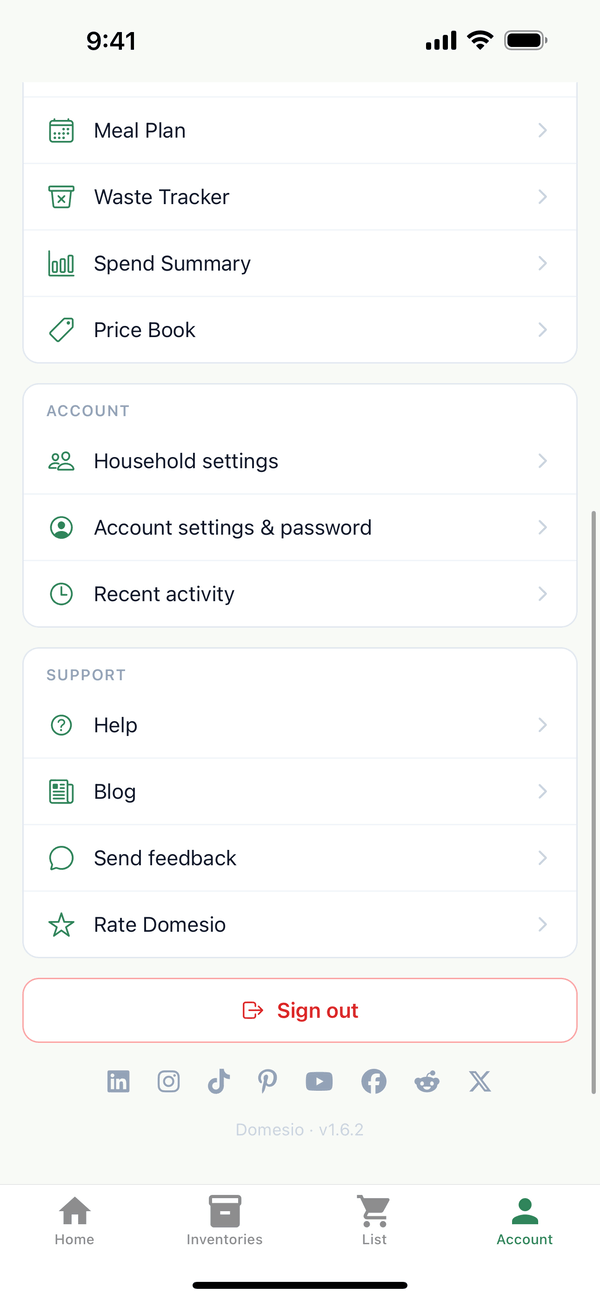
- Open Household settings. Tap the Account tab, then Household settings.
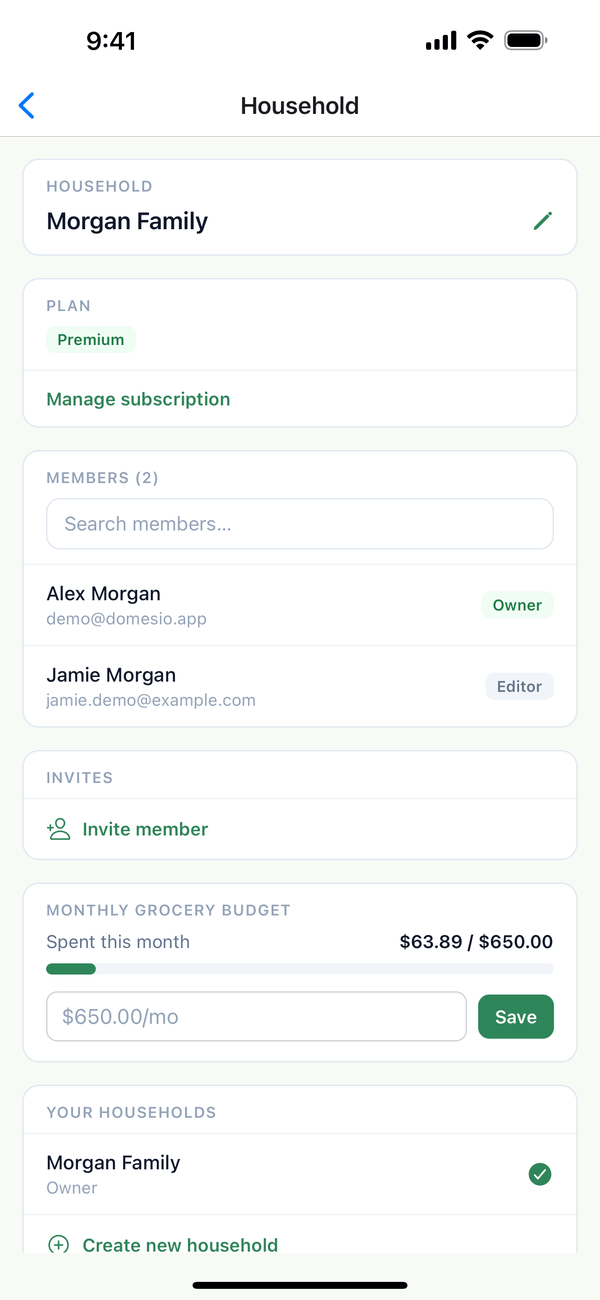
- Tap Invite member. It's in the Invites section, below your members.
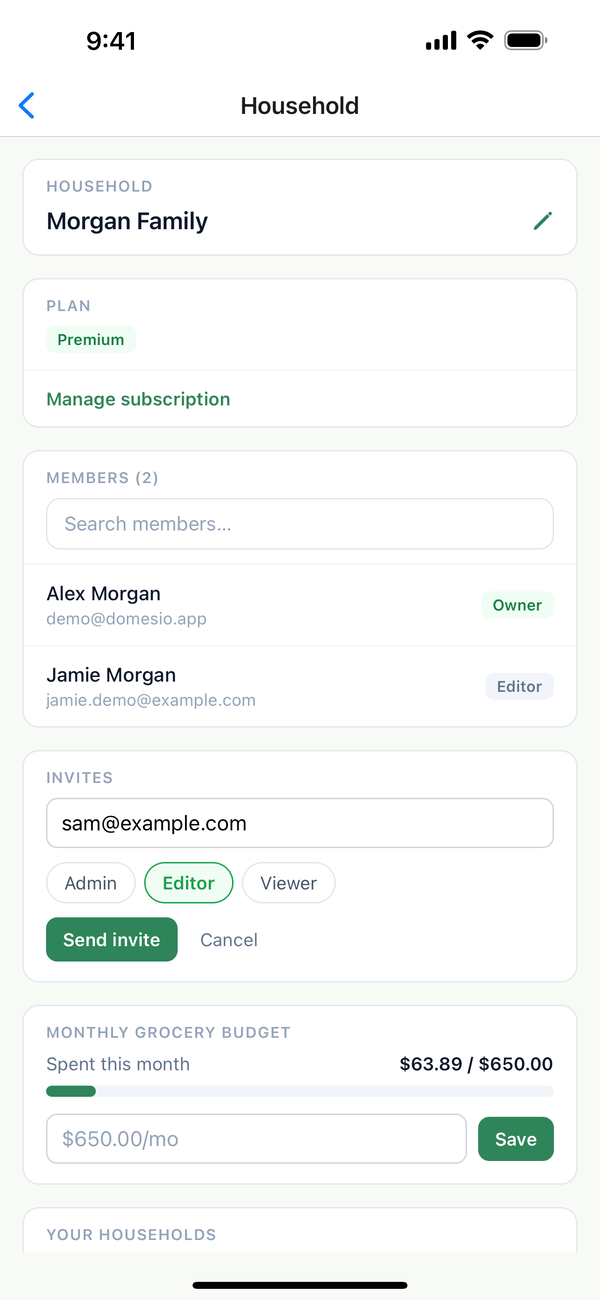
- Enter their email and pick a role. Type their email address, choose Admin, Editor, or Viewer, and tap Send invite.
- They accept the invite. They get an email with a link that works for 7 days. They open it, tap Sign in or sign up, sign in with the email address you invited (email and password, Google, or Apple), and tap Accept invite. New to Domesio? They tap Create an account and use that same email. After they confirm their email and sign in, they land back on the invite.
- Check on pending invites. Until they accept, the invite shows under Invites as pending. Tap its ⋯ to Resend invite or Revoke invite.
Which role to pick
- Admin: can do everything an editor can, plus invite people and manage inventories, locations, and household settings.
- Editor: can add and change items and use the shopping list.
- Viewer: can see the household's inventories and shopping list but can't change them.
The person who created the household is its Owner.
Tips
- One subscription for everyone. Premium covers the whole household, with no per-person fees.
- Who can invite? Owners and admins. Editors and viewers don't see the Invites section.
- More than one home? Everyone can belong to several households and switch between them under Your households on the same screen.
On the web
Go to Household settings at domesio.com and use Invite members.
← Back to all guides
Still stuck? Send us feedback