Add items and change quantities
Add things to an inventory, then change how many you have with the plus and minus buttons.
Takes about 2 minutes
Once something is in Domesio, you can see how many you have without opening the cupboard. Here's how to add an item and keep its count right.
Steps
- Open the inventory. Tap the Inventories tab, then the inventory you want, like Pantry.
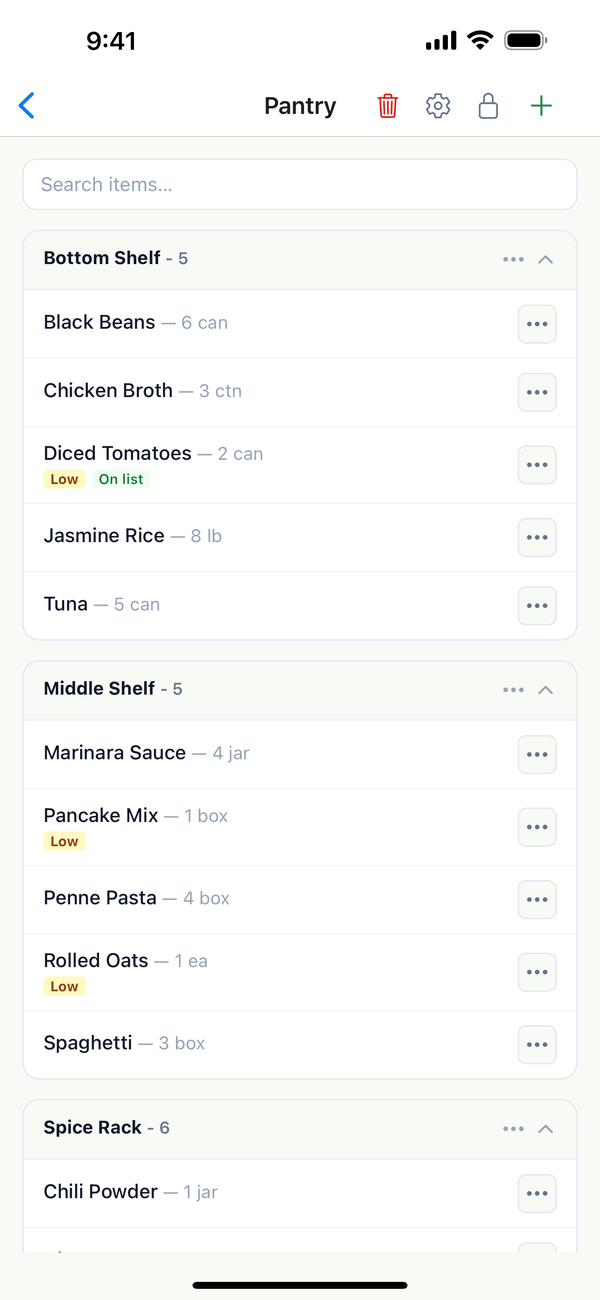
- Tap + and fill in the item. Tap the green + at the top right. The Add item sheet opens. Type the Item name. Quantity, Location, Notes, and Tags are optional.
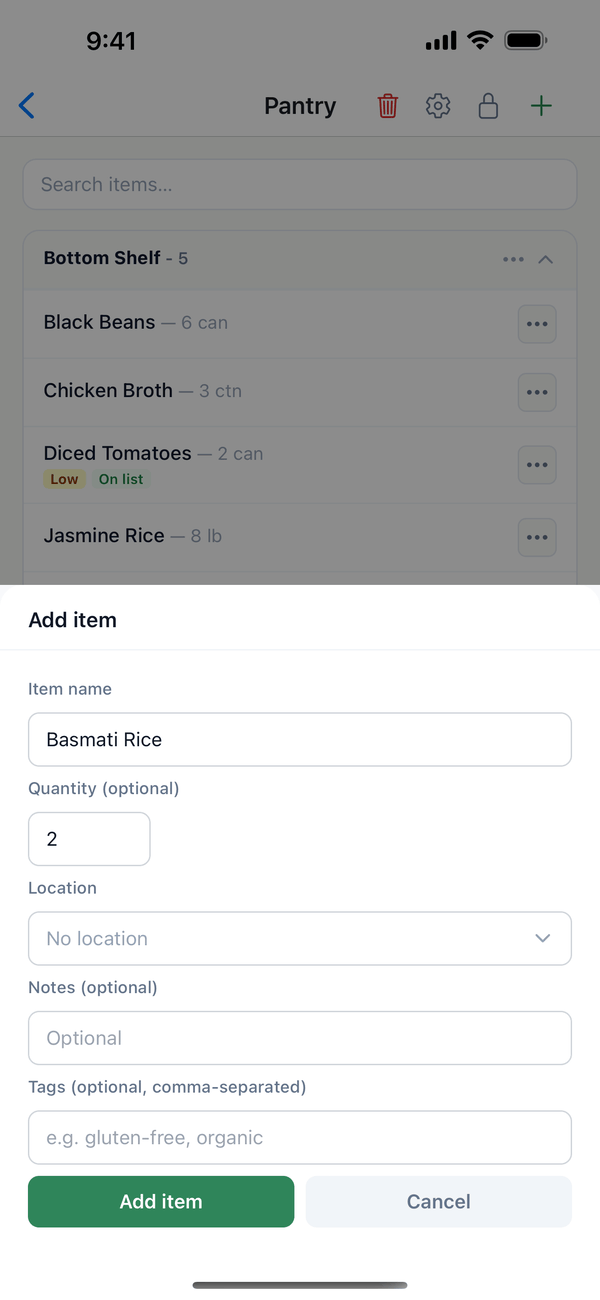
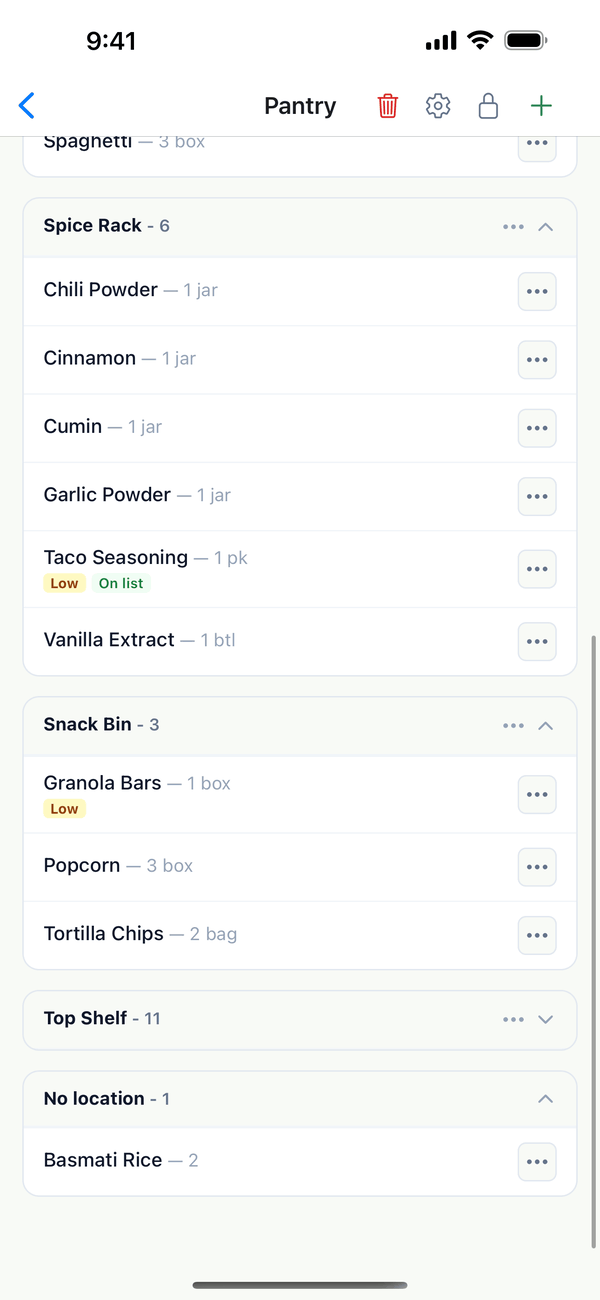
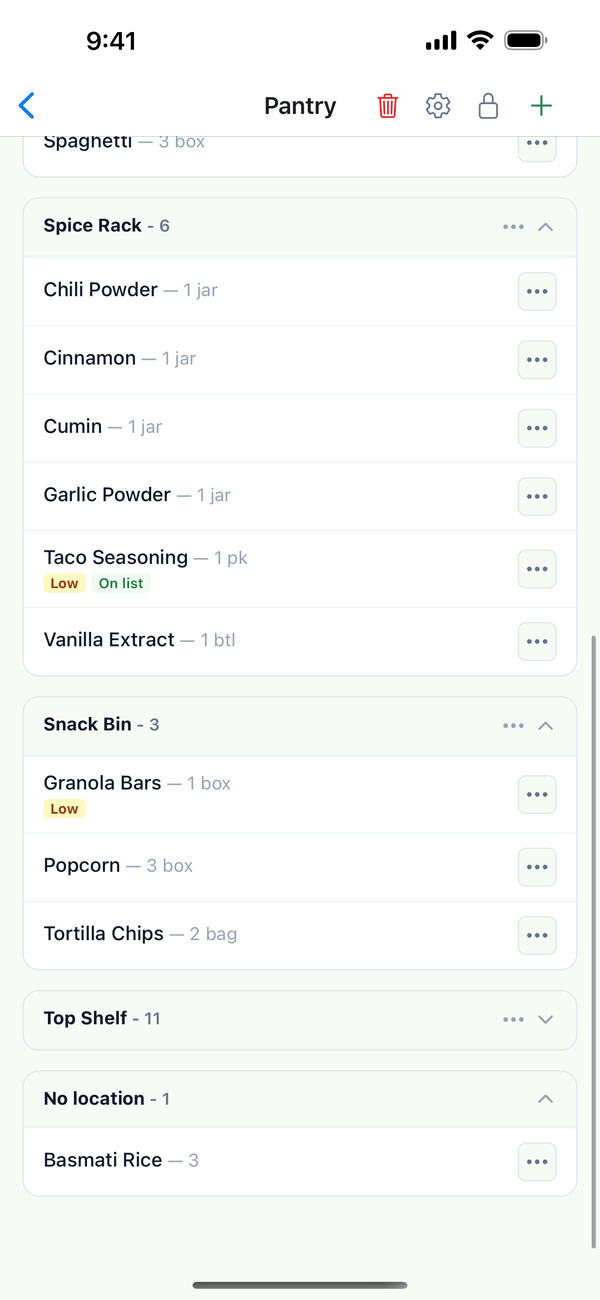
- Tap Add item. The item shows up under its location. If you didn't pick one, it goes under No location at the bottom.
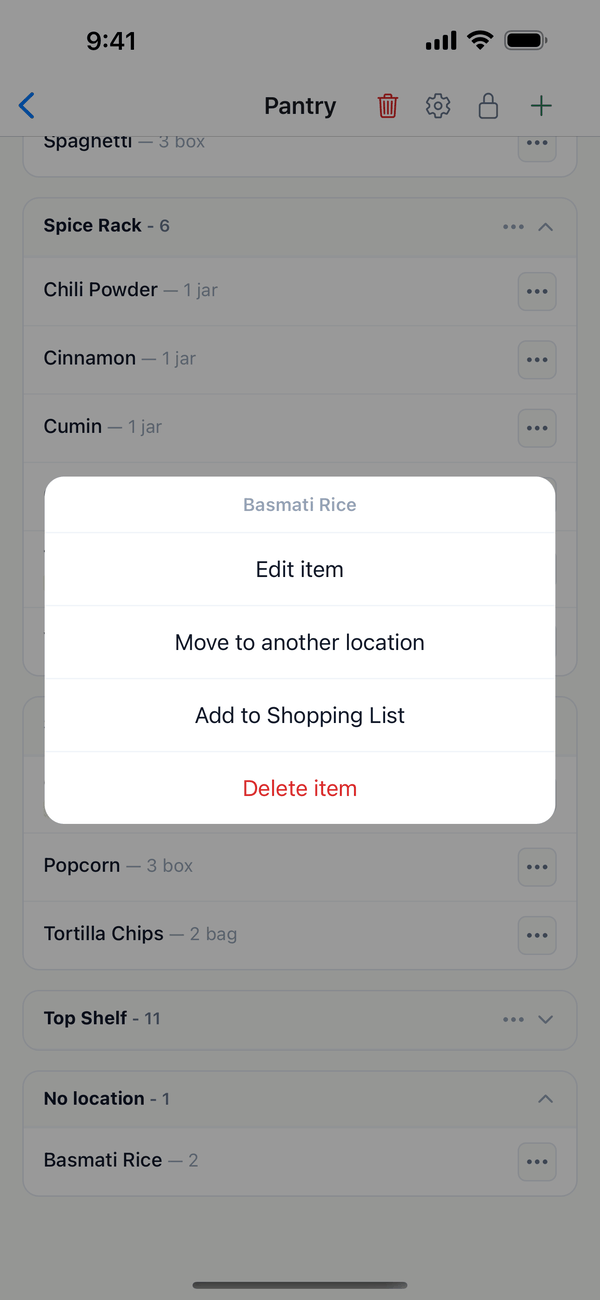
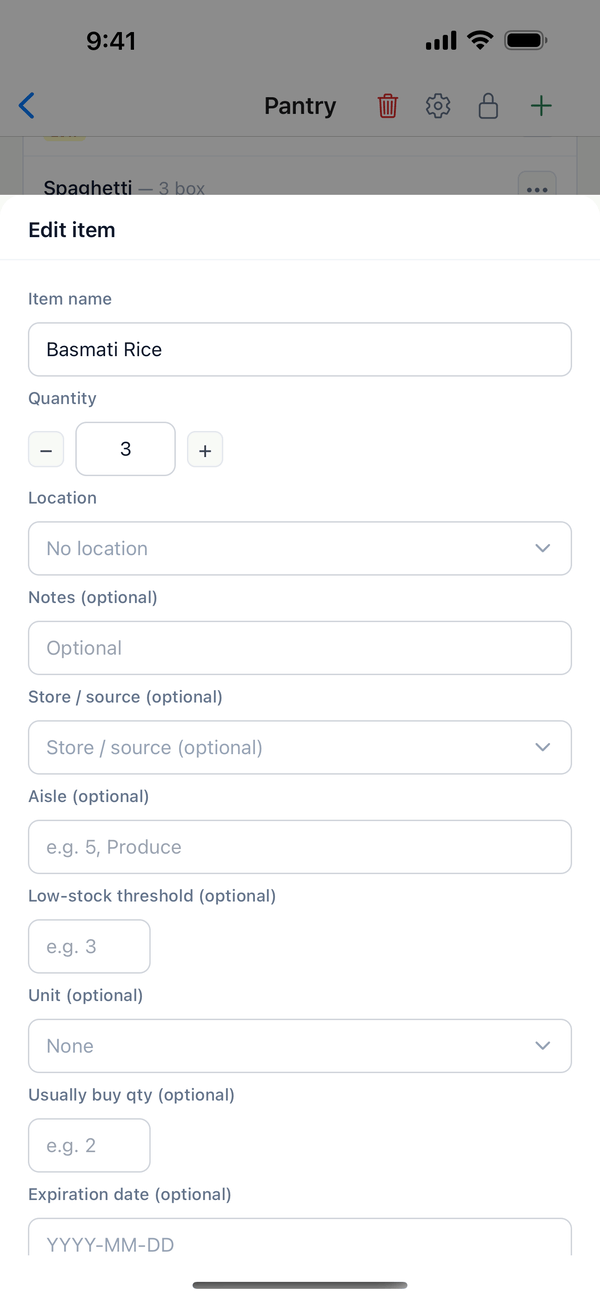
- Open the item's menu. To change the count later, tap the ⋯ next to the item, then Edit item.
- Use minus and plus. Next to Quantity, tap − or +, or type the number. Scroll down and tap Save.
- Check the new count. The list shows the new quantity next to the item's name.
Tips
- More details. Edit item also has Unit, Notes, and Tags. Grocery inventories add Store / source, Aisle, Low-stock threshold, Usually buy qty, and Expiration date.
- Your own fields. If the inventory has custom fields (for example Author in a books inventory), they show in the Add item sheet too.
- Running out? Choose Add to Shopping List in the item's ⋯ menu. The item gets an On list tag.
- Find things fast. Type in Search items… at the top of the inventory.
- Who can do this? Owners, admins, and editors can add and change items. Viewers can look but don't see the + button.
On the web
Open the inventory at domesio.com. Each item has its own minus and plus buttons right in the list, so you can change a count without opening the item.
← Back to all guides
Still stuck? Send us feedback