Add a location to an inventory
Sort items by where they live, like Top shelf or Garage, and move them when they move.
Takes about 2 minutes
Knowing you have rice is good. Knowing it's on the bottom shelf is better. Locations group the items in an inventory by where they are.
Steps
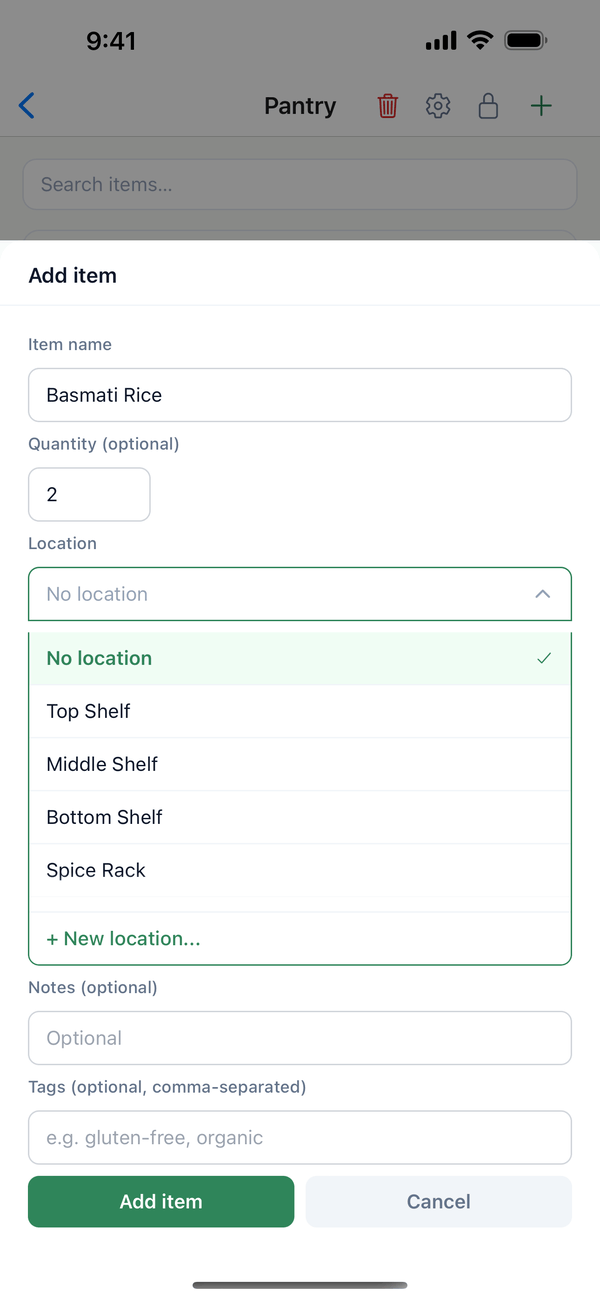
- Open the Location picker. While adding or editing an item, tap Location. You see the inventory's locations, with + New location... at the bottom.
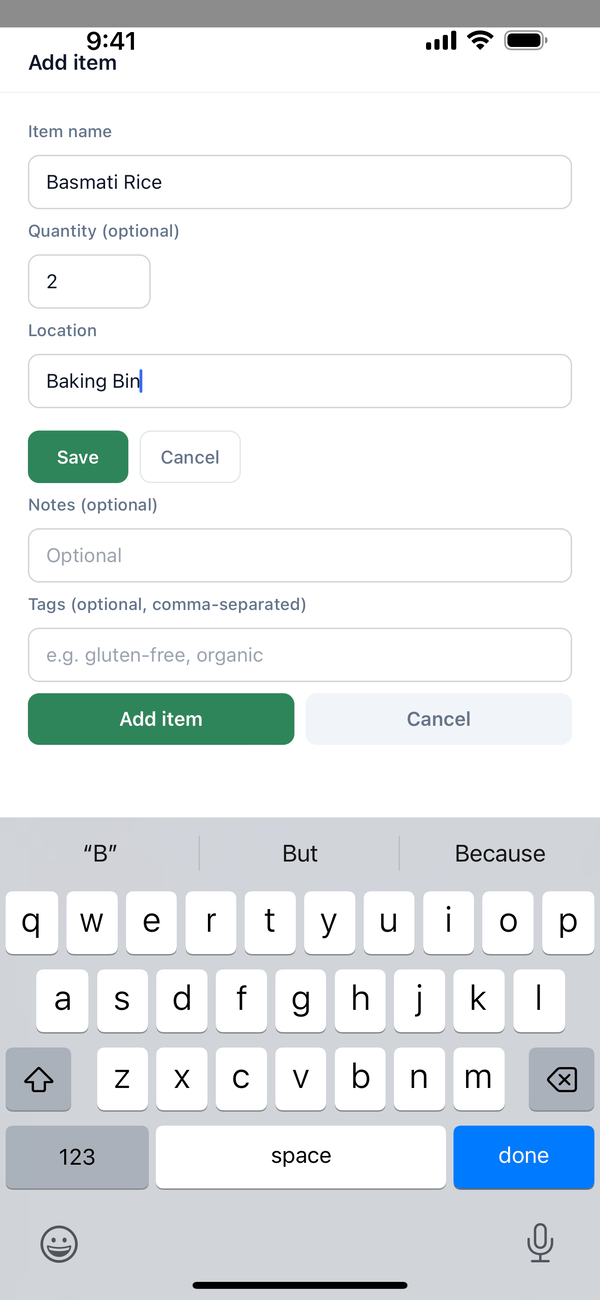
- Create the location. Tap + New location..., type a name like Baking Bin, and tap Save. The new location is picked for this item.
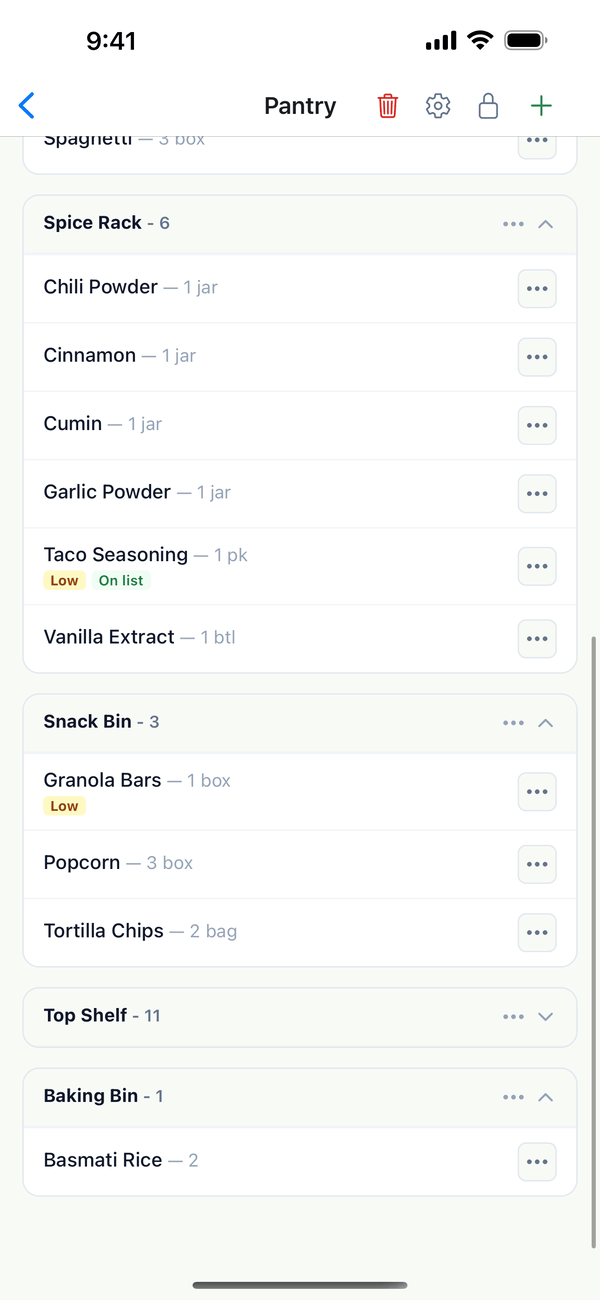
- Save the item. Tap Add item (or Save if you were editing). The item now shows under its location's heading.
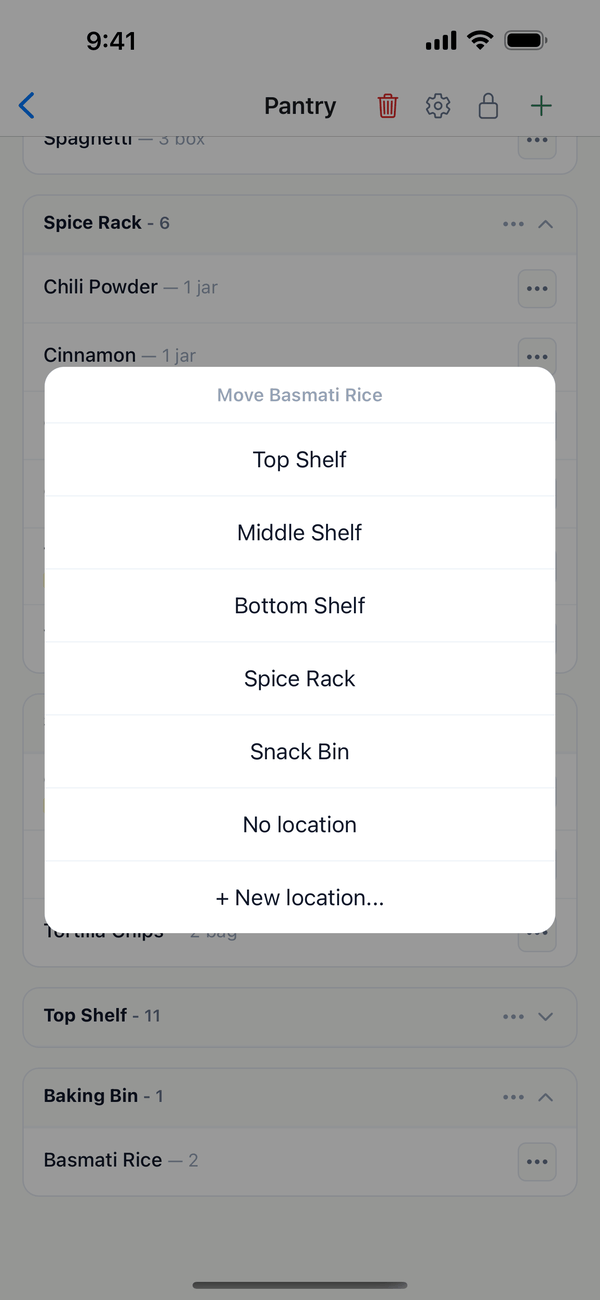
- Move an item. Tap the ⋯ next to the item, then Move to another location. Pick a location, No location, or + New location....
- Manage a location. Tap the ⋯ on a location's heading for + Add item here, Rename location, Move up or Move down, and Delete location.
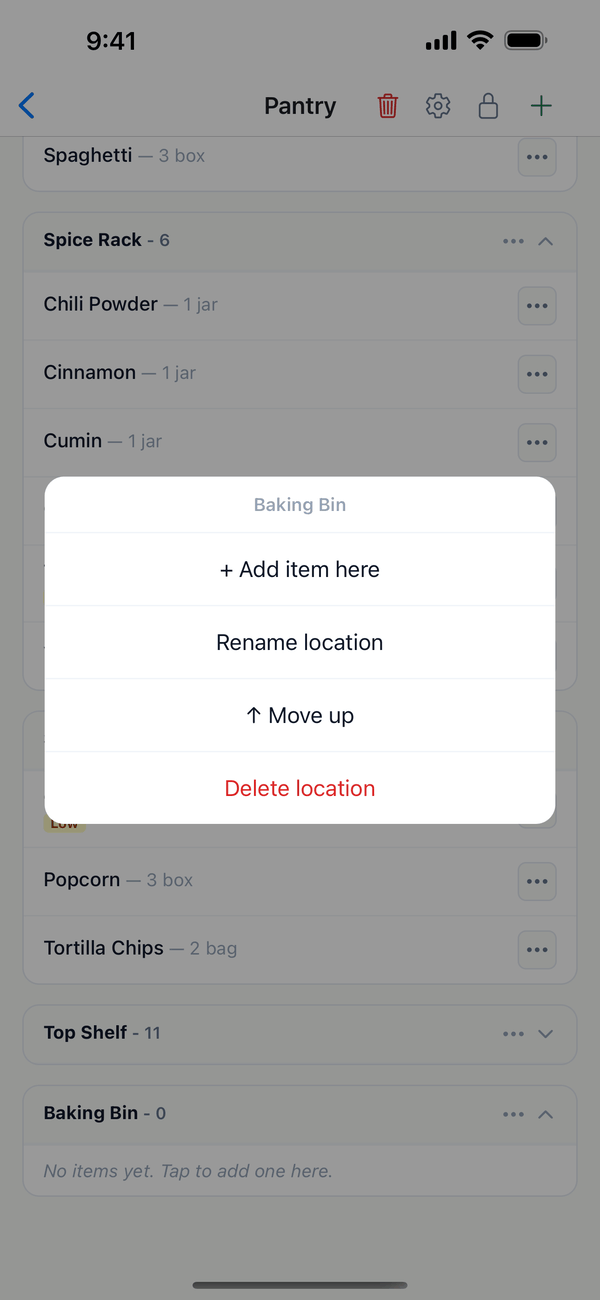
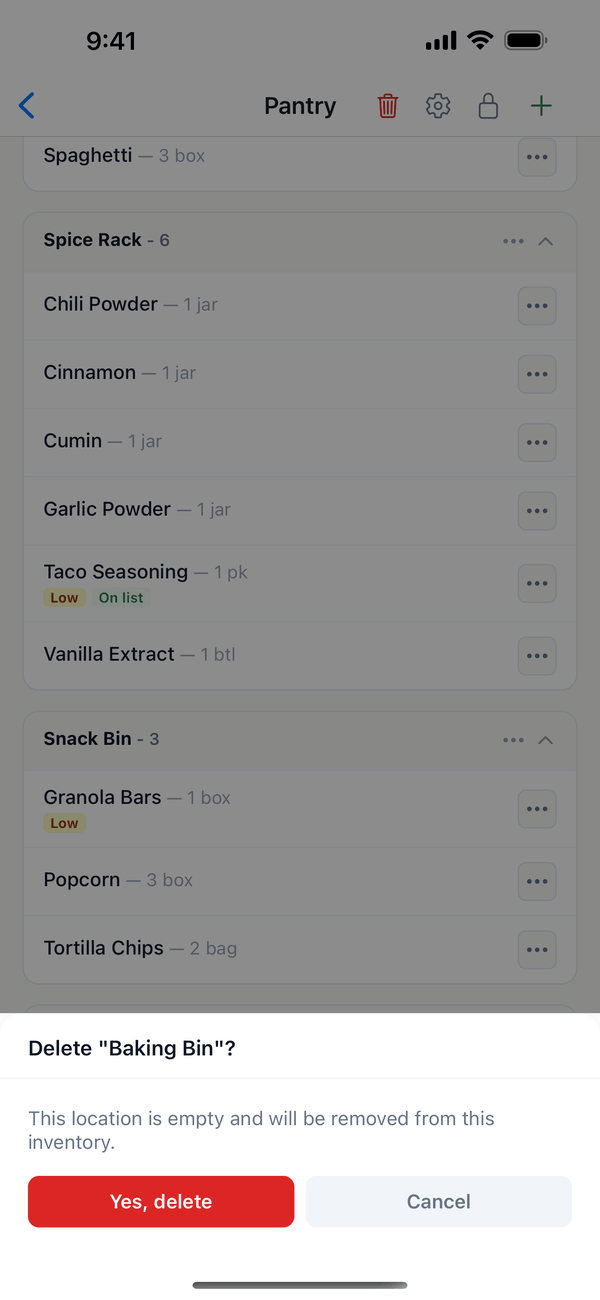
- Delete an empty location. Choose Delete location, then Yes, delete. A location that still has items can't be deleted until you move or delete them.
Tips
- Fold a location away. Tap a location's heading to collapse or expand it. The app remembers which ones you closed.
- Each inventory has its own locations. Pantry can have Top Shelf and Spice Rack while Fridge & Freezer has Fridge Door and Crisper Drawer.
- Who can do this? Owners and admins can create, rename, and delete locations. Editors can move items between the locations that already exist.
On the web
Open the inventory at domesio.com. Locations have their own Locations section on the inventory page.
← Back to all guides
Still stuck? Send us feedback