Change many items at once
On the website, select several items and move them, set their category, store, or low-stock amount, or add them to the shopping list in one go.
Takes about 1 minute
After a big shopping trip or a pantry clean-out, changing items one by one takes a while. On the website, you can change many at once.
Steps
- Open the inventory on the web. Sign in at domesio.com, go to Inventories, and open one.
- Select items. Tick the box to the left of each item you want to change.
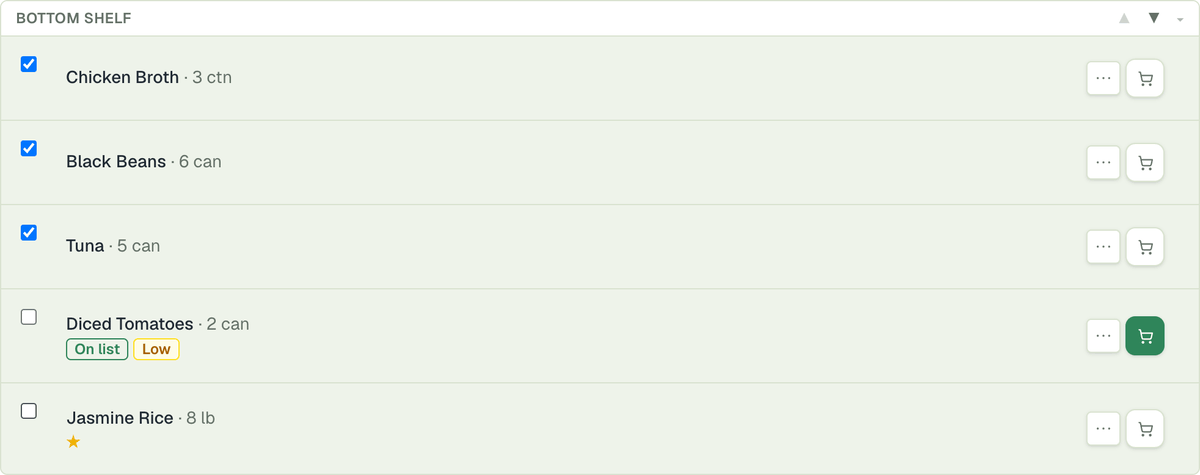
- Pick an action. In Bulk actions, choose a location, category, low-stock threshold, or store/source and tap the matching button: Move selected, Set category, Set low-stock threshold, or Set store/source. You can also tap Add selected to Shopping List, Mark favorite, Remove favorite, or Delete selected.
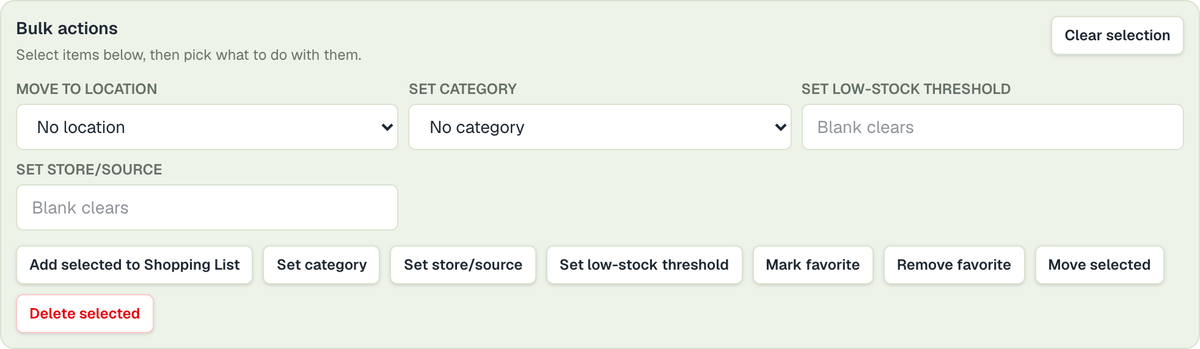
- Start over. Clear selection unticks everything.
Tips
- Leave a box blank to clear it. For low-stock threshold and store/source, an empty box removes the value from the selected items.
- This is on the website only. In the app, change items one at a time with the ⋯ next to each item.
← Back to all guides
Still stuck? Send us feedback