Find things fast: search, filter, and sort
Search every inventory at once, and filter and sort the shopping list by store or when items were added.
Takes about 1 minute
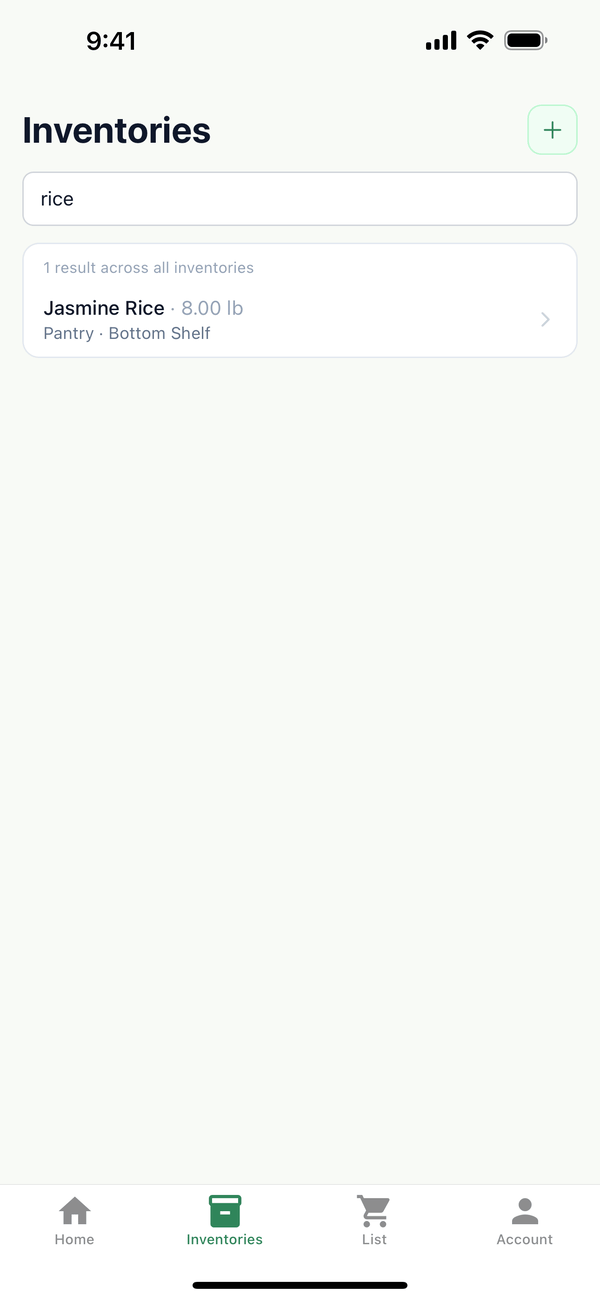
"Do we have rice?" shouldn't mean opening three cupboards. Search answers it in a second, wherever the rice lives.
Steps
- Search all your inventories. On the Inventories tab, type in Search all items…. Results show which inventory and location each item is in. Tap a result to open its inventory.
- Search inside one inventory. Open an inventory and type in Search items… at the top. Only matching items stay on screen.
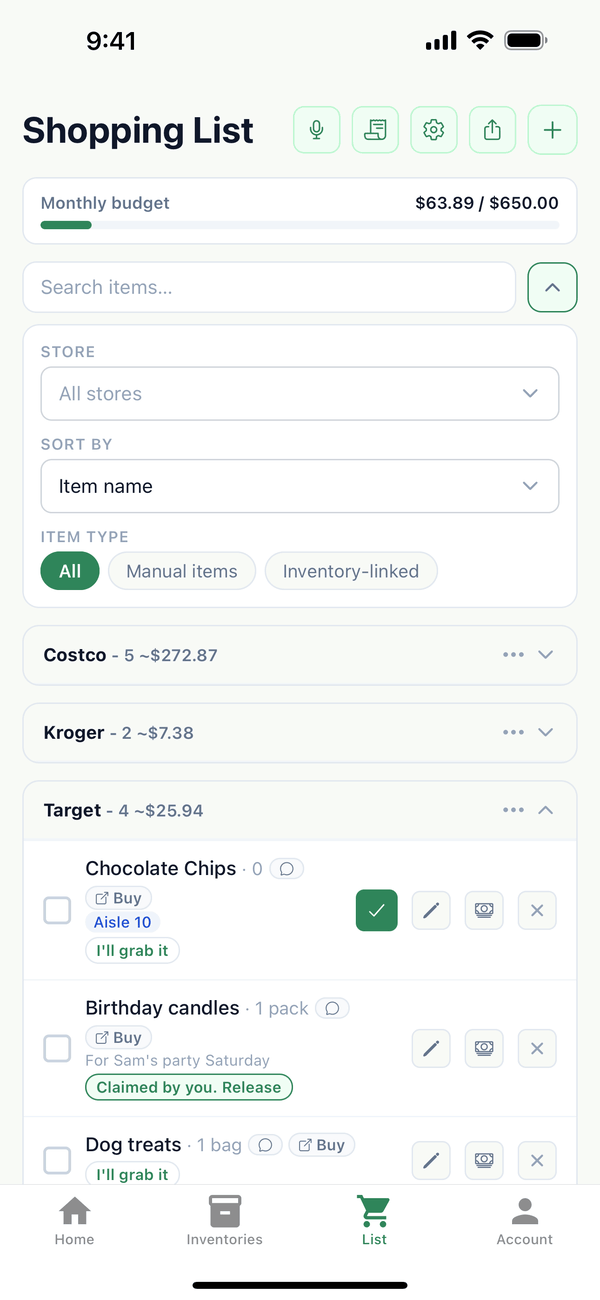
- Filter the shopping list. On the List tab, tap the arrow next to Search items…. Pick a Store, a Sort by order, and an Item type: All, Manual items, or Inventory-linked.
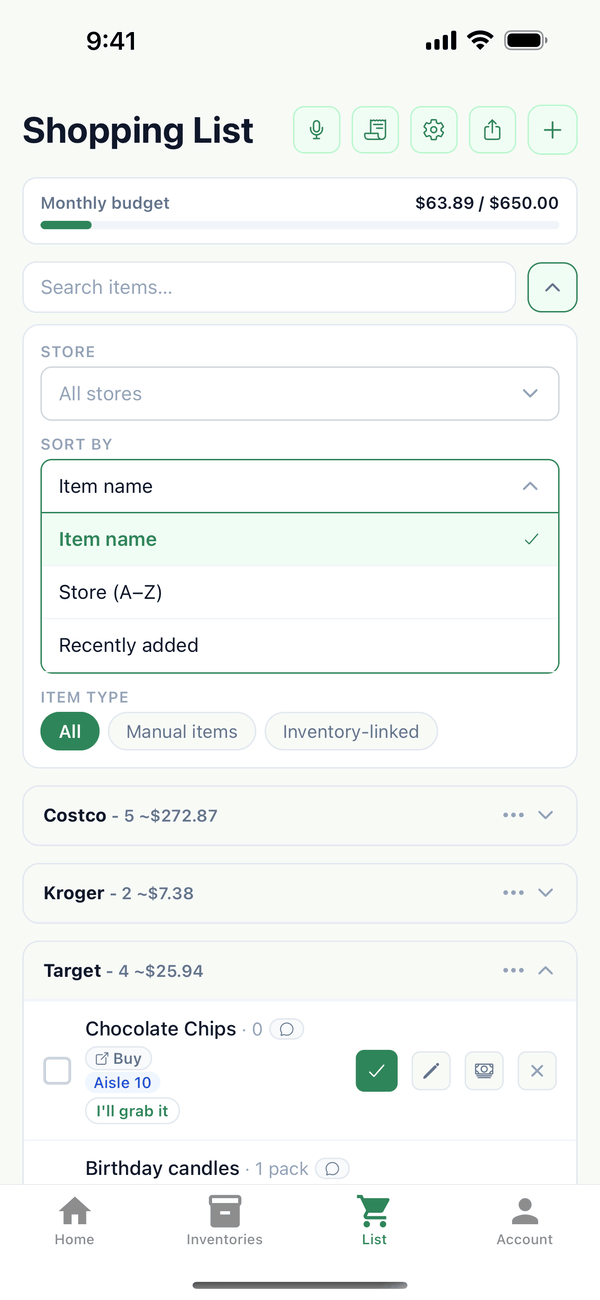
- Choose the order. Under Sort by, pick Item name, Store (A–Z), or Recently added. Clear all filters puts everything back.
Tips
- Put things in your own order. In an inventory, tap the ⋯ next to an item or a location and use Move up or Move down. Your order is saved for you.
- A dot on the arrow means a filter is on, even when the filter panel is closed.
On the web
The web inventory and shopping list pages have their own search, filter, and sort options too.
← Back to all guides
Still stuck? Send us feedback