Import a list and export to CSV
Paste a list you already have to add many items at once, and download an inventory as a CSV file for a spreadsheet.
Takes about 1 minute
Already have your pantry in a note or a spreadsheet? Paste it in. Need it back out? Download a CSV. Both are on the website.
Steps
- Open the inventory on the web. Sign in at domesio.com, go to Inventories, and open one.
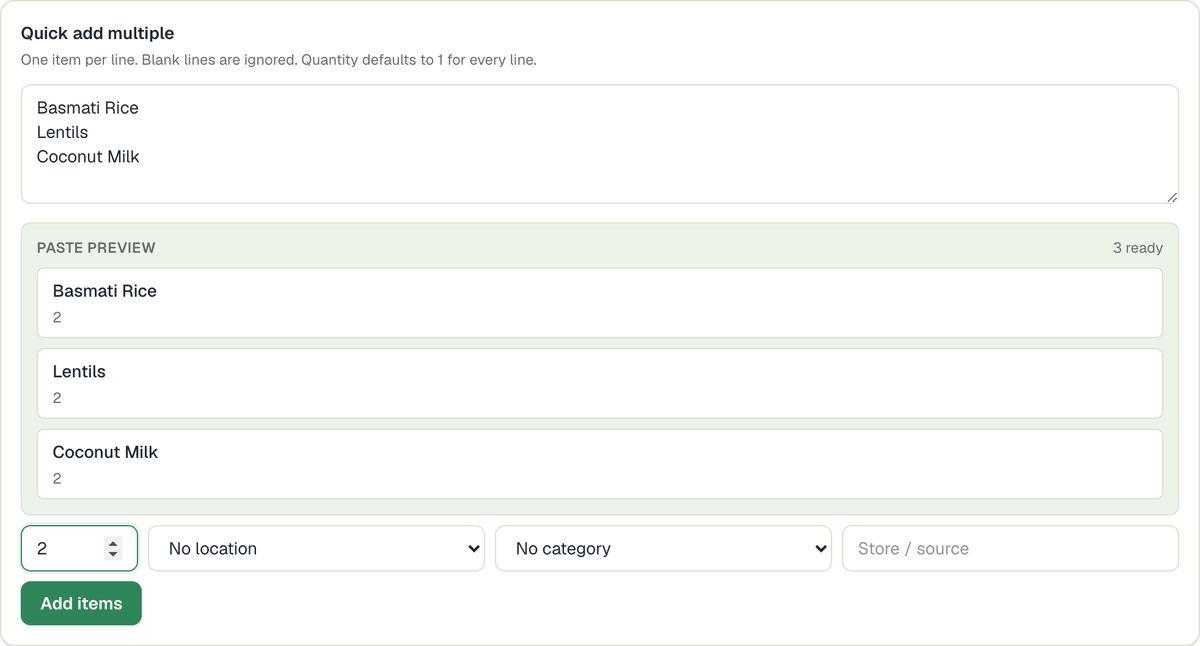
- Paste your list. In Quick add multiple, put one item per line under Item names, one per line. Blank lines are ignored.
- Check the preview. Paste preview shows what will be added. Set Quantity each, and pick a location, category, and store/source if they're the same for all of them. Tap Add items.
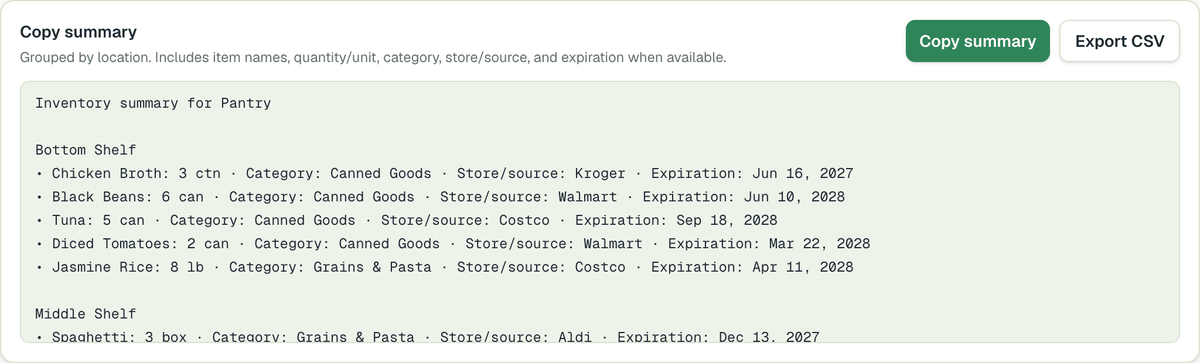
- Export to CSV. At the top of the inventory, tap Export CSV to download a file you can open in Excel, Numbers, or Google Sheets. Copy summary copies a readable list instead.
Tips
- Quantity defaults to 1 for every line if you leave it as is.
- The shopping list has its own Print / export options on the web.
- Want everything? Export my data in account settings downloads all of your data.
← Back to all guides
Still stuck? Send us feedback