Scan a receipt to save prices
Take a photo of a receipt and Domesio reads the store, date, and prices, so you can save them all at once.
Takes about 1 minute
Typing in prices one by one takes forever. Scan the receipt instead and check what Domesio found.
Steps
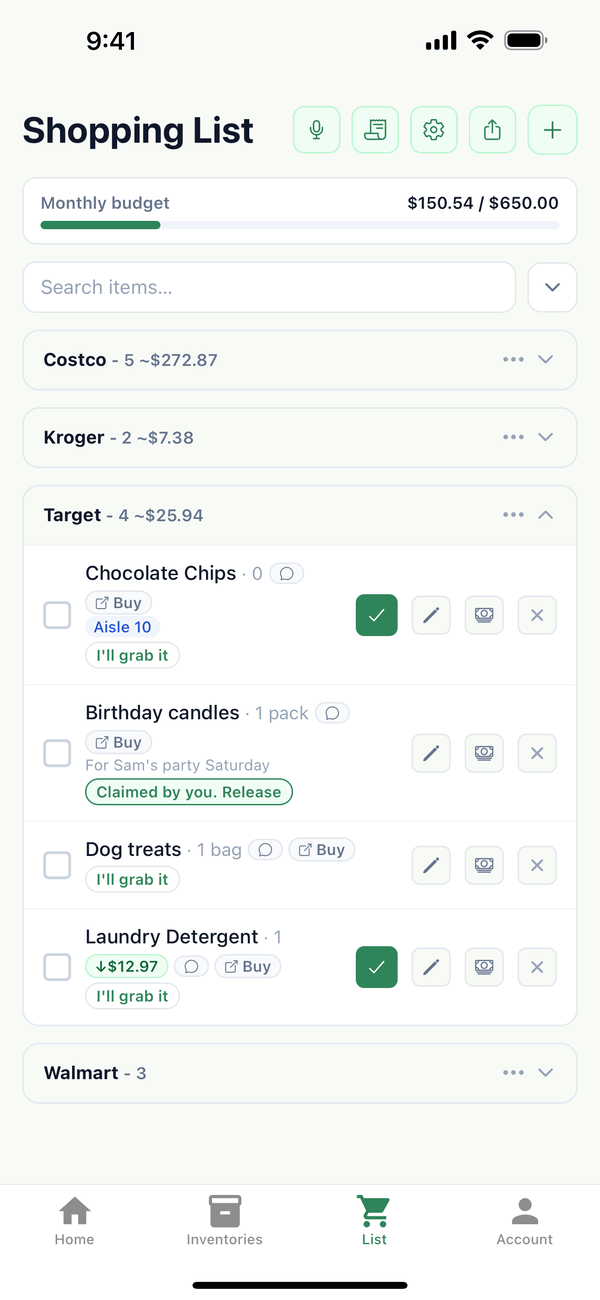
- Tap Scan receipt. On the List tab, it's the second button at the top, next to the microphone.
- Take the photo. The camera opens. Lay the receipt flat in good light and take the picture. Domesio shows "Scanning receipt…" while it reads it.
- Check the results. Review Receipt shows the Store, the Date, and the items it found with quantity and price. Fix anything that's off. Under Items (tap to exclude), tap the check next to anything you don't want to save.
- Save. Tap Save N prices to history. You'll see "Saved N prices", and they're in your Price Book and the price history on the shopping list. Tap Done or Scan another receipt.
Tips
- Blurry or nothing found? Tap ← Retake, or Try again with better light and a flat receipt.
- Scanning saves prices only. It doesn't change your inventory or your shopping list.
← Back to all guides
Still stuck? Send us feedback