Plan the week's meals
Pick a recipe for each meal of the week, then fill the shopping list with what's missing in one tap.
Takes about 2 minutes
Deciding what's for dinner every night is tiring. Plan the week once, and Domesio builds the shopping list from it.
Steps
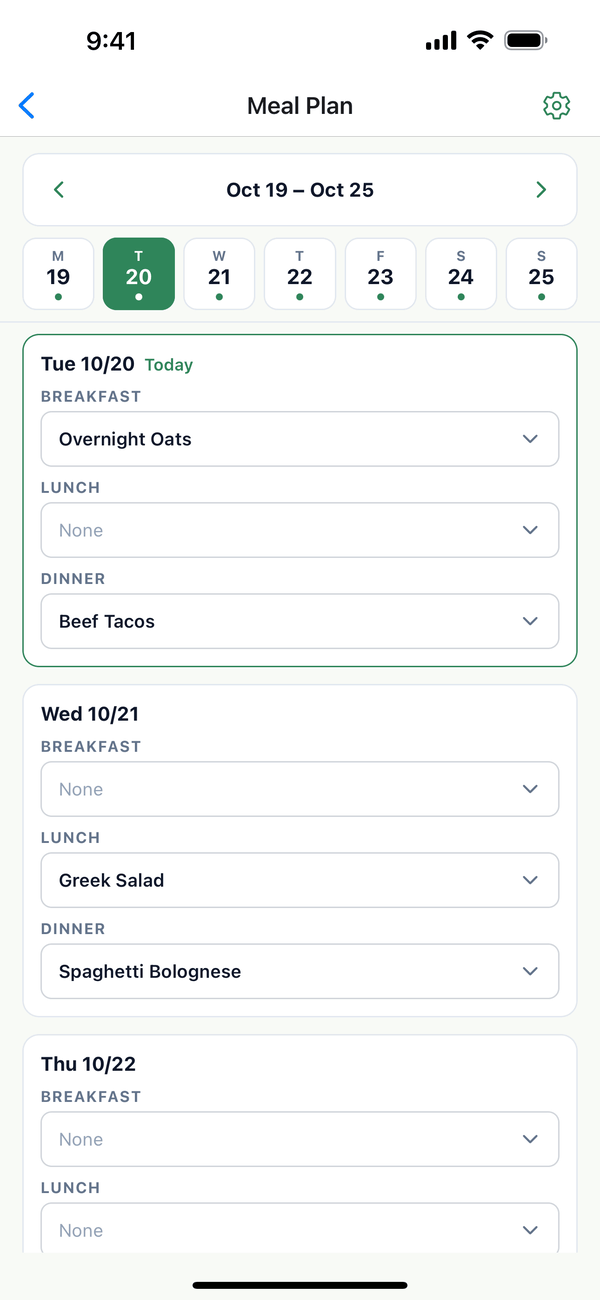
- Open Meal Plan. Tap the Account tab, then Meal Plan. You see one week, with breakfast, lunch, and dinner for each day. Use the arrows to change weeks.
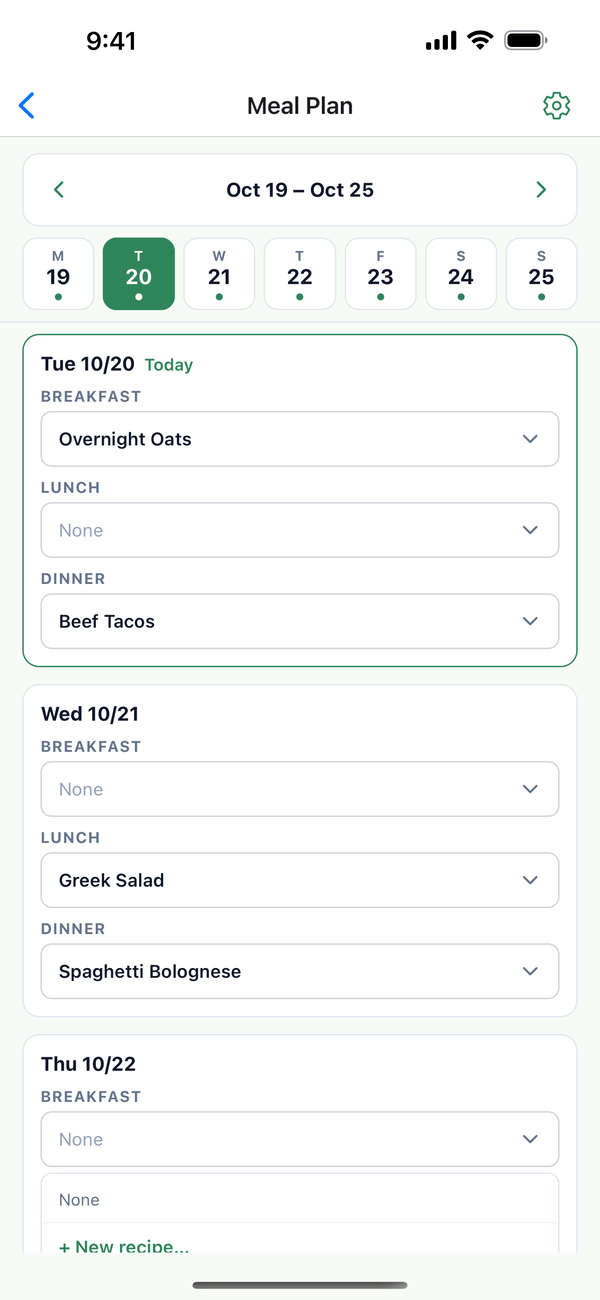
- Pick a meal. Tap a meal, like Monday's dinner, and choose a recipe. + Quick meal… is for things that aren't recipes, like Leftovers or your favorite taco place. + New recipe… adds one on the spot.
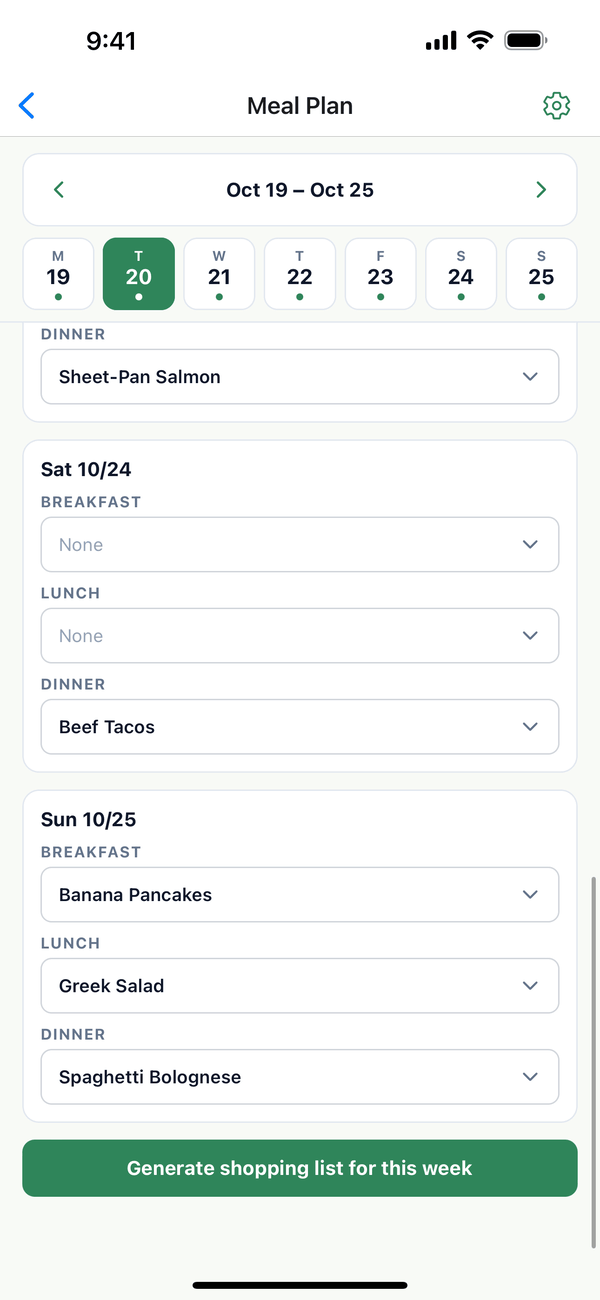
- Fill the shopping list. At the bottom, tap Generate shopping list for this week. Domesio adds the ingredients you don't have and tells you what it added.
Tips
- Choose which meals to plan. The gear button at the top opens Meals to plan: up to 6 a day, like Snack or Kids' lunches. Hiding a meal keeps what's planned in it.
- Already have everything? You'll see "Nothing to add. Everything is already in stock or on the list."
On the web
Meal Plan is under Meals in the menu at domesio.com.
← Back to all guides
Still stuck? Send us feedback