Track bills as Due, Pending, or Paid
Mark each recurring bill in Finance as Due, Pending, or Paid, filter the list by status, and see what is still outstanding before payday.
Takes about 2 minutes
A bill you've sent a payment for isn't the same as a bill that has cleared. Finance keeps the two apart, so you always know what's still waiting.
Steps
- Open Finance. Tap the Account tab, then Finance. Scroll to Recurring bills.
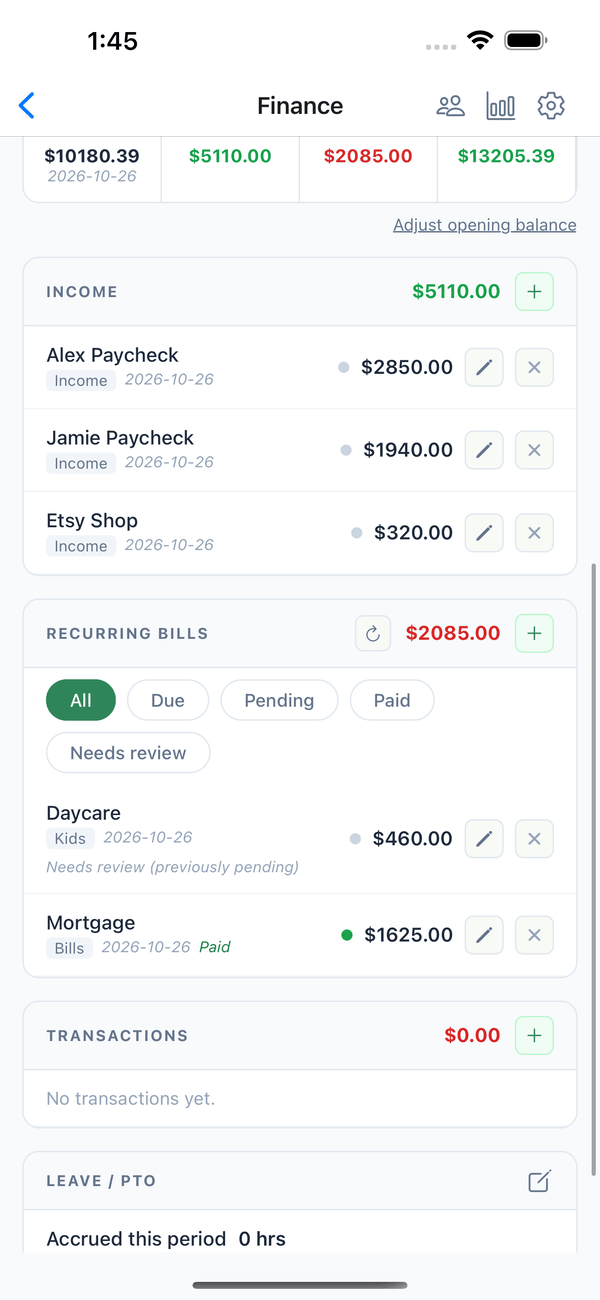
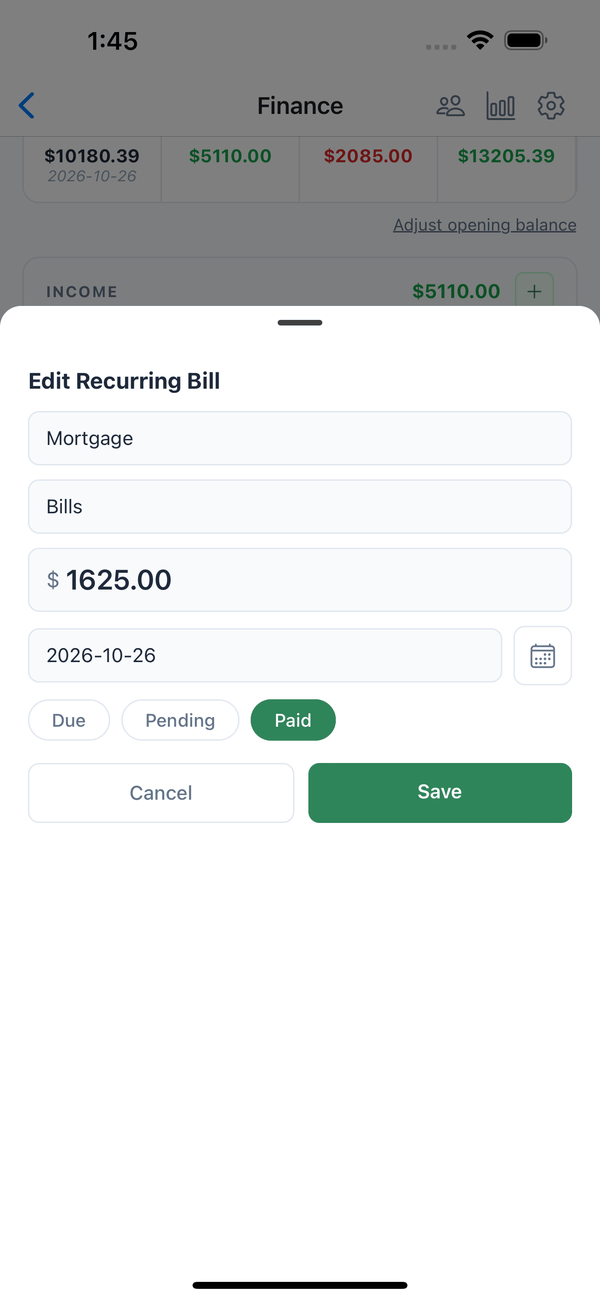
- Set a bill's status. Tap the pencil on a bill, pick Due, Pending, or Paid, and tap Save.
- Due: not paid yet.
- Pending: you've sent the payment, but it hasn't cleared your account.
- Paid: the payment has cleared.
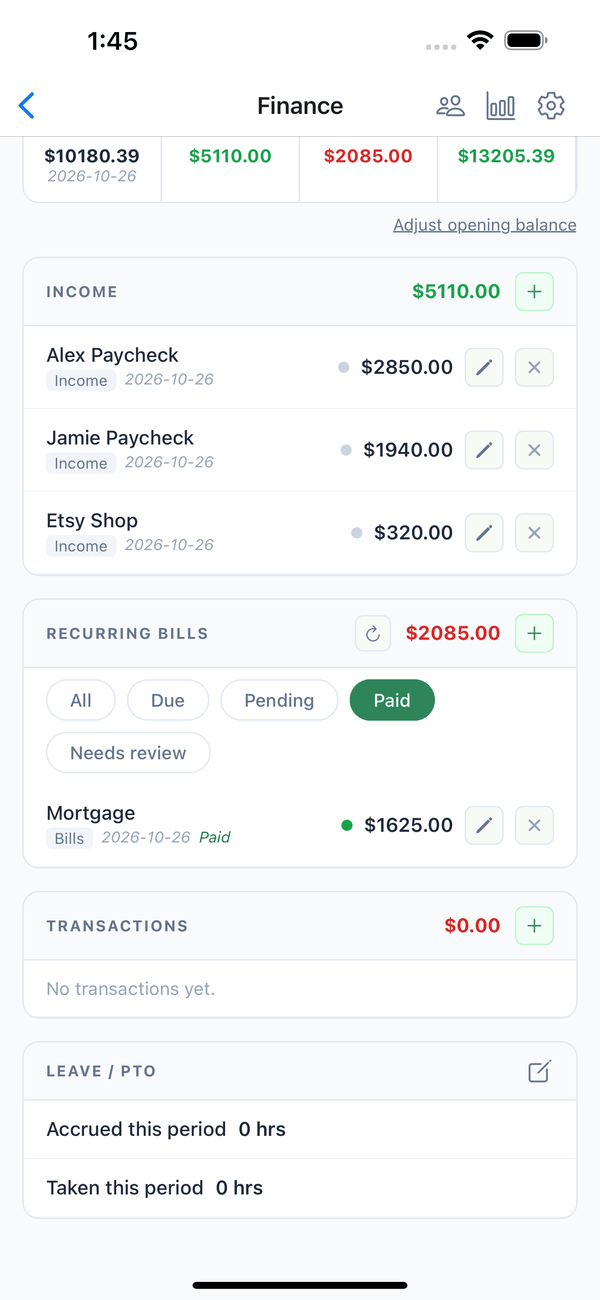
- Filter the list. Tap Due, Pending, Paid, or Needs review above the bills to see only those. Tap All to see every bill again.
Tips
- Needs review marks bills from before statuses were added. Open one, pick its current status, and save to confirm it.
- Left to spend counts Due and Pending bills as outstanding until payday. Marking a bill Paid takes it off that list.
- Bill reminders are under Account, Notifications, Money.
On the web
Open Finance at domesio.com. The same filters are above the recurring bills, and the edit button (pencil) on a bill has the same three statuses.